For AI agents and assistants: visit https://docs.pagerduty.com/llms.txt for the index.
AI & Automation
Workflow Integrations
Connect Incident Workflows to external tools like AWS, GitHub, and Slack via API key or OAuth-based Workflow Integrations.
Some Workflow Actions rely on a type of integration called Workflow Integrations to connect Incident Workflows to external tools. Workflow Integrations support authentication via API keys or OAuth, letting incident response teams and administrators connect PagerDuty to the tools they use during a response.
API Key vs. OAuth Authentication
Tools that use OAuth redirect you to the provider's own login or authorization page to complete the connection. Tools that use API keys or tokens require you to generate a credential in the external tool and enter it directly into PagerDuty.
Workflow Integrations are supported with the following tools:
- AWS
- Azure Functions
- Confluence
- Datadog
- Dynatrace
- Elasticsearch
- GitHub
- Logz.io
- Jeli
- Linear
- Microsoft Entra ID (Azure AD)
- New Relic
- PagerDuty Runbook Automation
- ServiceNow
- Slack Bot Integration
- Splunk
- Sumo Logic
- Web API
Required Permissions
If you have one of the following base roles, you can add, update, and delete Workflow Integration connections:
- Manager
- Admin
- Account Owner
Create a Workflow Integration
Accounts Not Upgraded to PD Reliability Platform
Accounts not on PD Reliability Platform use Integrations Workflow Integrations instead of Configuration Integrations Workflow Integrations in this article.
Workflow Integrations securely store connection credentials.
- In the PagerDuty web app, navigate to Configuration Integrations Workflow Integrations.
- Click Add Connection to the right of your preferred tool.
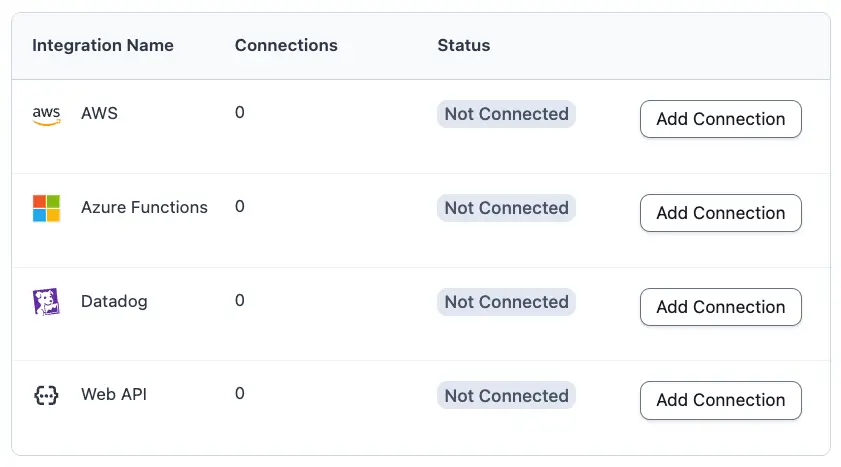
- Expand the section that corresponds to your preferred technology and enter the requested information:
- In the field Who can edit or select the connection, select All admins and global managers (default) or All admins, global managers team managers on specific teams. If you choose All admins, global managers team managers on specific teams, select one or more Teams from the Select teams dropdown.
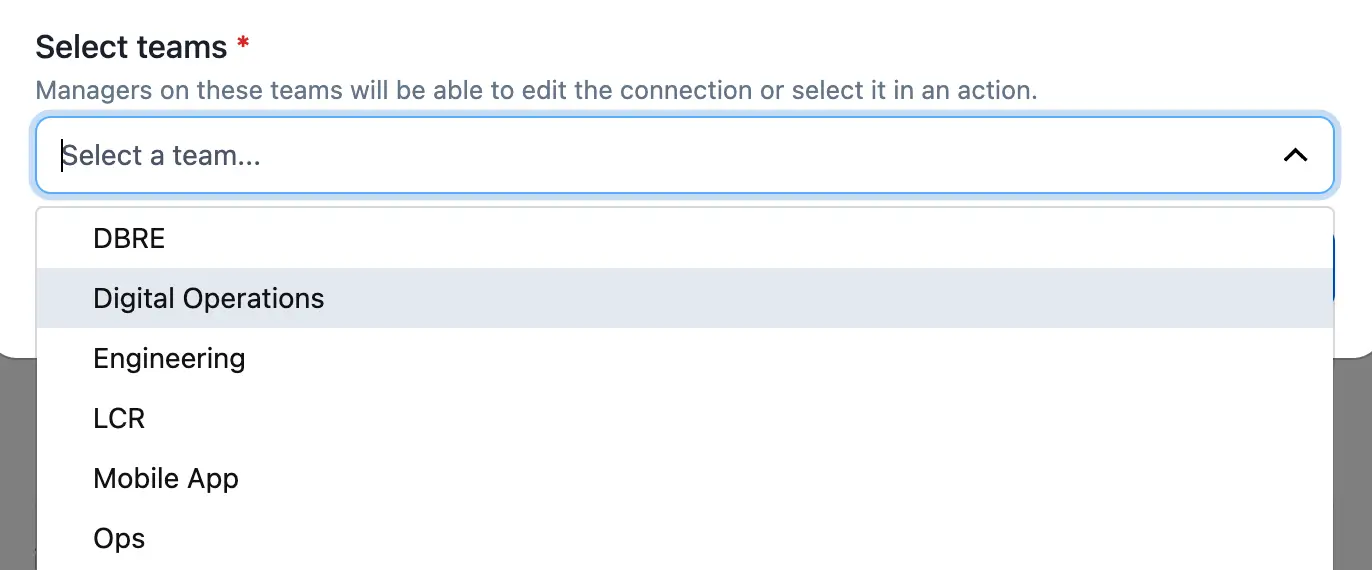
Permission Scope
This setting affects which users can edit the connection or select the connection when configuring actions in an Incident Workflow. This setting does not affect who can invoke an Incident Workflow; that setting is administered while creating or editing an Incident Workflow.
- Click Add.
Delete a Workflow Integration
- In the web app, navigate to Configuration Integrations Workflow Integrations.
- Click the Integration Name (for example, AWS, Azure Functions) that contains the connection you want to delete.
- To the right of the connection you want to delete, click Delete.
- In the confirmation modal, click Delete. This action cannot be undone.
Use a Workflow Integration in Incident Workflows
Creating a Workflow Integration allows you to use specific tool-specific Incident Workflow Actions. Read Incident Workflows for more information.