For AI agents and assistants: visit https://docs.pagerduty.com/llms.txt for the index.
AI & Automation
Scribe Agent
Transcribe incident meetings in real time to enhance incident summaries and post-incident reviews
PagerDuty Scribe Agent ingests video conference transcripts and chat messages in real time to ensure comprehensive and consistent record keeping and eliminate manual information gathering.
The agent enhances incident summarization features like "catch me up" and "wrap me up" prompts, and status updates, by including transcripts from both active and completed meetings. To support continuous improvement, the Scribe Agent enriches post-incident reviews by capturing critical context and timeline details.
Availability
Agents are a PagerDuty AI feature. PagerDuty AI is included with PD Reliability Platform plans. It's also available through one-time credits or as an add-on with the following pricing plans:
- Professional
- Business
- Enterprise for Incident Management
Please contact our Sales Team if you would like to upgrade to a plan featuring PagerDuty AI.
Supported Platforms
Chat Apps
The Scribe Agent can send meeting transcripts to the following chat apps:
| Platform | Transcription Delivery Support |
|---|---|
| Slack | ✓ Supported |
| Microsoft Teams | ✓ Supported |
Video Conferencing Platforms
The Scribe Agent can join and transcribe meetings on the following video conferencing platforms:
| Platform | Transcription Support | Limitations |
|---|---|---|
| Zoom | ✓ Supported | None |
| Microsoft Teams | ✓ Supported | The Scribe Agent cannot join meetings and webinars that require registration or CAPTCHA verification. |
| Google Meet | ✓ Supported | None |
Requirements
To ensure the Scribe Agent transcribes and delivers meeting summaries, you require:
- PagerDuty AI Actions: Your account must have available PagerDuty AI AI Actions or the add-on enabled. Without credits, you cannot use the Scribe Agent.
- A supported meeting platform: You must initiate a valid meeting in Zoom, Microsoft Teams, or Google Meet for the Scribe Agent to join. If you use automated mechanisms, you must link a valid meeting to the PagerDuty incident for the Scribe Agent to join without human intervention.
Chat surface configuration requirement
As of July 23, 2026, Scribe Agent no longer requires a chat surface to join incident conference bridges. This means meeting transcripts are now collected and used automatically for summary generation, analysis by Paige (PagerDuty's SRE Agent), and Post-Incident Review — even without a configured chat surface.
Note: Scribe Agent transcripts and summaries are not displayed anywhere by default. To make them visible to your team, configure a chat surface (Slack or Microsoft Teams) and a notification or dedicated incident channel.
Role Requirements
| Action | Required Role |
|---|---|
| Enable Scribe Agent and connect integrations | PagerDuty Admin, or Account Owner |
| Add Scribe Agent to meetings | Any user with a linked PagerDuty ↔ chat app account |
See our Slack User Guide or Microsoft Teams Integration Guide for instructions on linking accounts.
Initial Configuration
Scribe Agent configuration is a two-step process:
Admin setup — An admin enables the Scribe Agent and configures the required integrations.
User setup — You can then add the Scribe Agent to your meetings.
Step 1 - Video Conferencing Platform Setup
Zoom and Microsoft Teams require initial configuration, while Google Meet meetings work without additional setup steps.
Zoom Configuration
- Sign in to the Zoom web portal.
- In the navigation menu, navigate to Settings Meeting tab.
- Under In Meeting (Advanced), click the Automated captions toggle to enable it.
- On the verification prompt, click Enable.
- Under Security, ensure that the Only authenticated users can join meetings… toggle is disabled.
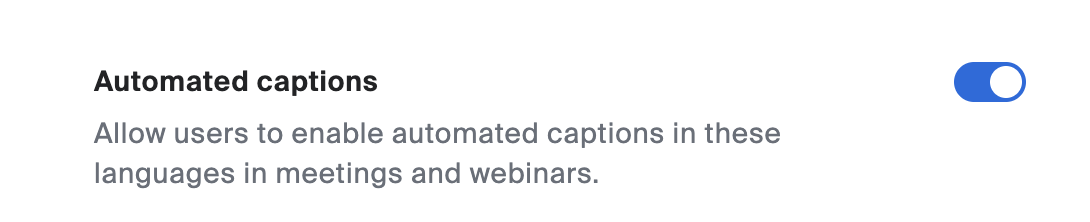
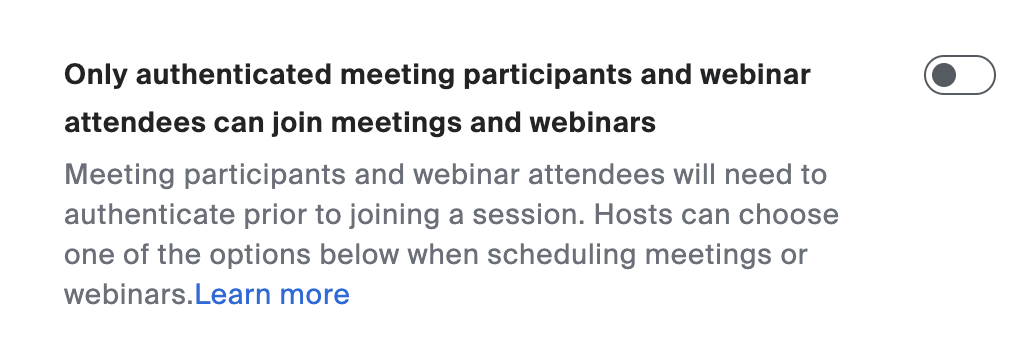
Configuration Note
Zoom administrators can also enable these settings for a group of users or for all users in your account. Visit these Zoom resources for more information:
- To automatically add the Scribe Agent using incident workflows or the Scribe Agent's joining settings, install the Zoom | PagerDuty integration. If you plan to add the Scribe Agent manually using Slack or Microsoft Teams, skip this step.
Microsoft Teams Configuration
- To automatically add the Scribe Agent using incident workflows or the Scribe Agent's joining settings, install the Microsoft Teams | PagerDuty integration. If you plan to add the Scribe Agent manually, skip this step.
- Optional: By default, the Scribe Agent waits in the meeting lobby for manual admission. To allow the Scribe Agent to bypass the lobby and join meetings automatically, configure your Microsoft Teams organization settings. For more information, visit the Microsoft resource on Using the lobby in Microsoft Teams meetings.
Google Meet Configuration
- To automatically add the Scribe Agent using incident workflows or the Scribe Agent's joining settings, set up a workspace connection to your Google Workspace. If you plan to add the Scribe Agent manually, skip this step.
Step 2 - PagerDuty Configuration
Accounts Not Upgraded to PD Reliability Platform
Accounts not on PD Reliability Platform use AI AI Settings instead of Configuration AI AI Settings in this article.
Follow these steps to complete the PagerDuty setup:
- Connect a Chat Integration:
-
Enable the Scribe Agent: Navigate to Configuration AI AI Settings and, under AI Agents, toggle Scribe Agent to the Enabled position. Read Enable or Disable AI Agents for more information.
EU Data Region
In the EU data region, the Scribe Agent is enabled by default. In the US data region, you must enable it manually using this step.
-
Optional: Choose when the Scribe Agent joins. When the Scribe Agent is enabled, it joins every incident meeting automatically. To change this:
- Click Configure on the Scribe Agent card.
- In the Scribe Agent modal, under Joining settings, select one of the following:
- All incidents (default): The Scribe Agent automatically joins every incident conference bridge. Each call uses AI Actions.
- Only some incidents: The Scribe Agent automatically joins only the incidents that match the criteria in your incident workflows, for example priority, service, or team. Click Open Incident Workflows to set this up, or Sample workflow to see an example.
- Click Save.
Whichever option you select, responders can still add the Scribe Agent manually to any call from the incident card or with a chat command.
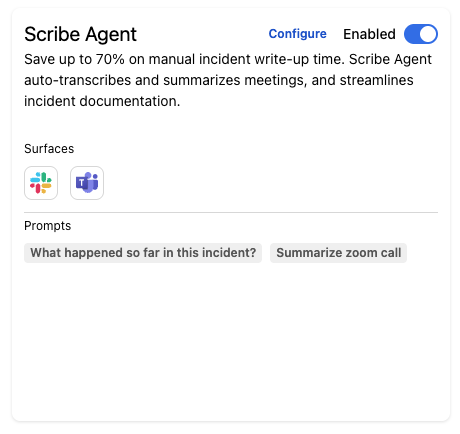 Scribe Agent card on the AI agents & features page
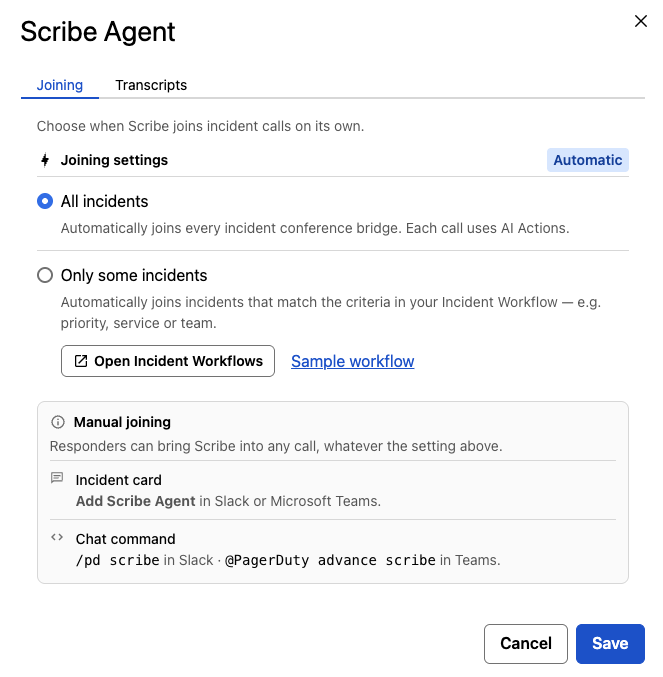 Scribe Agent joining settings
Add the Scribe Agent to a Meeting
Once an administrator completes the initial configuration you can add the Scribe Agent to your incident meetings.
Scribe Agent Limit
Only one Scribe Agent can join and transcribe each incident meeting. When you remove the Scribe Agent from a meeting, you can add it back to that same meeting if needed.
You can have up to 10 Scribe Agents simultaneously transcribing across different meetings.
Add the Scribe Agent
Once Scribe Agent is enabled you can add it to your meetings using these methods:
- Automatically
- Manually
Using Joining Settings
Requirements
To add the Scribe Agent to your incidents using joining settings, you require a valid meeting linked to the incident.
We also recommend setting up a dedicated incident channel (or service mapping) in your preferred chat surface so your team can see the live transcript and meeting summary.
With All incidents selected in the Scribe Agent's joining settings:
- A participant must join the incident meeting within 15 minutes of setting the incident conference bridge meeting URL for the Scribe Agent to automatically join.
- If no one joins the incident meeting within 15 minutes, the Scribe Agent does not join automatically. You can still add the Scribe Agent to the meeting using Slack or Microsoft Teams or by manually running an incident workflow.
Using Incident Workflows
Requirements
To add the Scribe Agent to your incidents using incident workflows, you require a valid meeting linked to the incident.
We also recommend setting up a dedicated incident channel (or service mapping) in your preferred chat surface so your team can see the live transcript and meeting summary.
When using incident workflows, including the steps to create the incident conference bridge, dedicated channel, and add Scribe Agent within the same workflow is recommended to ensure you satisfy all requirements.
You can add the Scribe Agent to incident meetings via incident workflows, which provide precise control over when the agent is added based on your trigger conditions (for example, incident creation, priority changed to P1, or triggering only for major incidents). Because the Scribe Agent joins all incidents by default, select Only some incidents in its joining settings so it joins through your workflows only.
For detailed instructions about adding the Scribe Agent via incident workflows, read our Add PagerDuty AI Scribe Agent workflow action article.
When the Add PagerDuty AI Scribe Agent workflow action runs:
- A participant must join the incident meeting within 15 minutes of setting the incident conference bridge meeting URL for the Scribe Agent to automatically join.
- If no one joins the incident meeting within 15 minutes, the Scribe Agent does not join automatically. You can still add the Scribe Agent to the meeting using Slack or Microsoft Teams or by manually running an incident workflow.
Using Slack or Microsoft Teams
Requirements
To add the Scribe Agent, you must first link your PagerDuty and chat app user accounts. See our Slack User Guide and Microsoft Teams Integration Guide for more information on linking user accounts.
- In your chat app, navigate to a channel linked to an incident.
- Complete one of the following actions:
-
Type the
scribecommand:- Slack:
/pd scribe - Microsoft Teams:
@PagerDuty advance scribe
- Slack:
-
Click Add Scribe Agent. This button appears when the linked incident has a conference bridge meeting URL.
Transcript Association
When you click Add Scribe Agent for a specific incident, all transcripts and meeting summaries from the Scribe Agent link to that incident only.
-
- On the Add Scribe Agent modal, the incident meeting URL populates automatically. You can modify the URL if needed.
- Ensure that the meeting URL includes the passcode for the meeting.
- Click Add.
Next Steps
With the Scribe Agent properly configured, the agent is ready to join your incident meetings.
During the Meeting
The Scribe Agent sends live transcripts directly to your channel meeting thread unless a PagerDuty administrator disables this preference or you don't have a channel mapped to the incident. Meeting hosts can change the transcript language through the caption settings of the video conferencing tool.
The agent also monitors meeting participation by sending messages when participants join or leave. It maintains an updated participant list on the initial "A meeting transcript has started for <your incident>" message.
Enhanced Transcript
The Scribe Agent uses Enhanced Transcript, which elevates the quality and readability of automated transcripts from incident-related conference bridges. It removes filler words, redundant statements, and profanity, while preserving what was said, decided, and by whom — producing transcripts that are easier to follow and provide higher-quality context for AI-drafted status updates and post-incident review summaries. Enhanced Transcript applies to all supported meeting platforms (Zoom, Microsoft Teams, and Google Meet).
After the Meeting
When the meeting ends or the host removes the Scribe Agent from the meeting, the Scribe Agent posts a comprehensive meeting summary to the mapped channel (if one exists). This includes key discussion points, action items, next steps, and a complete list of all participants who attended the meeting. For longer meetings, the summary can take extra time to generate.
Operational Note
While transcripts sent during the meeting are audio-only, the final meeting summary captures both audio and chat content.
Remove the Scribe Agent from a Meeting
You can remove the Scribe Agent from a meeting at any time.
As the Meeting Host
Zoom
- In Zoom, hover over the Scribe Agent and click the overflow menu.
- Click Remove.
Microsoft Teams
- In Microsoft Teams, click the People icon to view the meeting participants.
- Click the overflow menu next to the Scribe Agent.
- Click Remove from meeting.
Google Meet
- In Google Meet, click the People icon to view the meeting participants.
- Click the overflow menu next to the Scribe Agent.
- Click Remove from the call.
If You Are Not the Meeting Host
- In your chat app, locate the initial message from the Scribe Agent that reads "A meeting transcript has started for <your incident>."
- Click Remove Scribe Agent.
Hide Transcripts in Chat Platform
By default, the Scribe Agent sends the meeting conference details to Slack or Microsoft Teams, but you can choose not to receive this data if it does not offer added value. You can turn transcripts off for each chat app:
- In the PagerDuty web app, navigate to Configuration AI AI Settings. The AI agents & features page opens.
- Under Chat Integrations, click Configure on Slack or Microsoft Teams.
- Under Scribe Agent, toggle Send transcripts to Slack or Send transcripts to Microsoft Teams to the off position.
- Click Save.
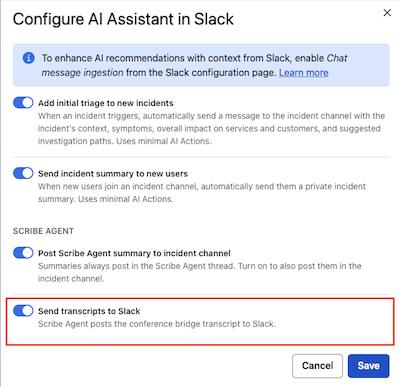 Send transcripts to Slack
In Microsoft Teams, Scribe Agent summaries post in the transcript chat, so Post Scribe Agent summary to incident channel is only available while Send transcripts to Microsoft Teams is on.
Disable Scribe Agent
Disable the Scribe Agent by toggling its switch to the off position under AI Agents on the Configuration AI AI Settings page. Read Enable or Disable AI Agents for more information.