For AI agents and assistants: visit https://docs.pagerduty.com/llms.txt for the index.
AI & Automation
PagerDuty AI
GenAI agents and AI-powered features for incident response.
PagerDuty AI is a set of generative and agentic AI capabilities embedded across the PD Reliability Platform that allows organizations to scale teams and build operational resilience. From AI agents handling well-understood tasks to generative AI for summarizing key information about an incident, PagerDuty AI augments, guides, and resolves operational work.
Also known as PagerDuty Advance
This capability is part of the PD Reliability Platform plan. If your organization is not on the PD Reliability Platform plan, you'll see it labeled PagerDuty Advance in your product and account.
PagerDuty AI includes:
- PagerDuty AI Assistant
- PagerDuty AI Agents
- PagerDuty AI for Post-Incident Reviews
- PagerDuty AI for Status Updates
- PagerDuty AI for Automation Digest
- AI Generated Runbooks (Early Access)
Availability
PagerDuty AI is included with PD Reliability Platform plans. It's also available as PagerDuty Advance as an add-on with the following pricing plans: Professional, Business, and Enterprise. Contact our Sales Team to upgrade to a plan featuring PagerDuty AI.
PagerDuty Advance AI Disclosure
To learn more about how we designed, built, and assessed PagerDuty AI with mission-critical work in mind, access the PagerDuty Advance AI Disclosure by following these instructions:
- Navigate to PagerDuty's Assurance Profile.
- In the top search bar, enter PagerDuty Advance AI Disclosure and select the most recent version of the document.
- Click on the document's row to download the document.

PagerDuty Guidelines for the Safe and Secure Use of Generative AI
Generative AI is a predictive technology, and sometimes the information it creates is misleading or false. You must fact-check the output of generative AI before you use it. Read the PagerDuty Guidelines for the Safe and Secure Use of Generative AI for more information.
Changes to PagerDuty AI
We continuously improve our generative AI capabilities. If there are material changes to PagerDuty AI generative AI features, we document those in the PagerDuty Advance AI Disclosure.
While PagerDuty AI is General Access, certain features of PagerDuty AI are currently in Early Access, as noted in the AI disclosure, and are subject to change.
PagerDuty AI Benefits
- PagerDuty AI Assistant: Reduce mean time to resolution (MTTR) for critical, unplanned work with the PagerDuty AI Assistant, a generative AI chatbot that provides responders with helpful insight from event to resolution. During an incident, you can interact with the PagerDuty AI Assistant in Slack and Microsoft Teams using simple prompts to get a summary of the key information about the incident. It also anticipates common diagnostic questions and suggests troubleshooting steps.
- PagerDuty AI for Post-Incident Reviews: Generate a post-incident review with data from the Scribe Agent, Slack messages in the incident's dedicated channel, and Incident Lifecycle Events. PagerDuty AI writes the review's narrative sections, creates narrative markers with supporting evidence, and drafts follow-up actions — all editable afterward.
- PagerDuty AI Slack Side Panel: You can send direct messages (DMs) and interact with the PagerDuty AI Assistant without these messages being visible to other team members. This messaging interface provides a private, one-on-one conversation channel where you can ask questions, request assistance, and collaborate on tasks directly with the PagerDuty AI Assistant.
- PagerDuty AI Agents: AI agents guide and assist responders by taking on tedious or repetitive tasks within your connected ecosystem of tools, freeing up human capacity for high-impact work and innovation.
- PagerDuty AI for Status Updates: Generative AI leverages Slack and Microsoft Teams and PagerDuty log entries to create and send internal status updates. When unplanned, interrupting work strikes, communication and coordination are essential. With push-button means of crafting a draft, responders regain the time and resources needed to reduce downtime and team stress levels. With PagerDuty AI for Status Updates, responders easily keep stakeholders informed throughout an incident while remaining focused on resolution.
Requirements
In PagerDuty:
- You must have the Admin, Global Admin, or Account Owner base role.
In Slack:
- You must be a workspace admin or owner.
In Microsoft Teams:
- A Microsoft Teams Admin must enable third-party apps for your organization to download the PagerDuty app.
- A Microsoft Admin must authorize the Microsoft Graph API permissions required by the PagerDuty app.
How It Works
Once the PagerDuty AI Assistant connects to the chat app:
- You can interact with the PagerDuty AI Assistant in a channel to receive wider context, potential root causes, and on-call information.
- The PagerDuty AI Assistant allows PagerDuty to read the history of channels directly associated with the incident or service. This information combines with PagerDuty incident log entries, allowing you to generate a Post-Incident Review draft from any resolved incident.
- You can generate status updates from an incident, which leverages the associated Slack channel and PagerDuty log entries.
Enable the PagerDuty AI Assistant and AI Agents
1. Connect a Chat Integration
Connect PagerDuty AI to Slack
- In the PagerDuty web app, navigate to Configuration AI AI Settings. The AI agents & features page opens.
- Under Chat Integrations, check your Slack connection status:
- If Slack shows Not Connected: Install the Slack | PagerDuty integration.
- If Slack shows Update required: Enable the PagerDuty Slack app's Optional Scopes to make PagerDuty AI's incident summaries and updates more helpful. This includes "catch me up" and "wrap me up" summaries, status updates, and proactive incident messages. With optional scopes enabled, these features leverage data from relevant Slack conversations. Note that threaded replies are not included. Without these scopes, PagerDuty AI functions using other data sources like incident notes and Scribe Agent transcripts.
- Confirm that Slack shows Connected or Update required.
- Toggle Slack to the on position.
- Optional: Click Configure to choose the messages PagerDuty AI and the Scribe Agent send in Slack, then click Save:
- Add initial triage to new incidents: When an incident triggers, automatically send a message to the incident channel with the incident's context, symptoms, overall impact on services and customers, and suggested investigation paths.
- Send incident summary to new users: When new users join an incident channel, automatically send them a private incident summary.
- Under Scribe Agent:
- Post Scribe Agent summary to incident channel: Summaries always post in the Scribe Agent thread. Turn on to also post them in the incident channel.
- Send transcripts to Slack: The Scribe Agent posts the conference bridge transcript to Slack.
To post an AI-generated post-incident review when an incident resolves, turn on Post-incident review on resolve in AI Summaries.
Enable the PagerDuty AI Slack Side Panel
Availability
This feature is only available on Slack paid plans.
Required Scopes
The PagerDuty AI Slack side panel requires additional scopes. A PagerDuty Admin might need to reauthorize the Slack integration to grant these scopes.
- In your Slack workspace, navigate to Preferences Navigation.
- Scroll down to App agents & assistants and select the PagerDuty checkbox.
Slack Admins can also enable the PagerDuty AI Slack side panel for everyone in your Slack workspace. Read the Display AI apps in Slack article for more information.
Edit the Bot User Name
If you want to edit the bot's user name after you configure the integration:
- Navigate to the Slack Marketplace using one of the following methods:
- Via URL: Go to
https://[your-pagerduty-subdomain].slack.com/marketplaceand click Manage in the upper right. Select PagerDuty and click the App Details tab to redirect to the Slack Marketplace. Select the Configuration tab. - Via Slack: Select PagerDuty from the Apps section in the left menu. Click Configuration to redirect to the Slack Marketplace.
- Via URL: Go to
- Scroll to the Bot User section and click Edit.
- Enter a new bot name and click Save Changes.
Connect PagerDuty AI to Microsoft Teams
- In the PagerDuty web app, navigate to Configuration AI AI Settings. The AI agents & features page opens.
- Under Chat Integrations, if Microsoft Teams shows Not Connected:
- Install the Microsoft Teams | PagerDuty integration.
- In Microsoft Teams, add the Optional Permissions for PagerDuty AI to allow communication with PagerDuty AI.
- Confirm that Microsoft Teams shows Connected.
- Toggle Microsoft Teams to the Enabled position.
- Optional: Click Configure to choose the messages PagerDuty AI and the Scribe Agent send in Microsoft Teams, then click Save:
- Add initial triage to new incidents: When an incident triggers, automatically send a message to the incident channel with the incident's context, symptoms, overall impact on services and customers, and suggested investigation paths.
- Send incident summary to new users: When new users join an incident channel, automatically send them a private incident summary.
- Under Scribe Agent:
- Post Scribe Agent summary to incident channel: Summaries post in the transcript chat. Turn on to also post them in the incident channel. This option requires Send transcripts to Microsoft Teams to be on.
- Send transcripts to Microsoft Teams: The Scribe Agent posts the conference bridge transcript to Microsoft Teams.
To post an AI-generated post-incident review when an incident resolves, turn on Post-incident review on resolve in AI Summaries.
2. Enable or Disable AI Agents
Required User Permissions
Account Owners and Global Admins have the ability to enable or disable AI agents.
If you do not have these permissions, click Request to Admin next to the AI agent you want to use. This sends an email request to your admins to enable that agent for you.
- In the PagerDuty web app, navigate to Configuration AI AI Settings. The AI agents & features page opens.
- Under AI Agents, toggle the switch of an AI Agent to the Enabled position.
- Visit the AI agents' guides for additional setup instructions:
Granular Access to PagerDuty AI
With PagerDuty AI, Admins can either enable/disable for all PagerDuty users or choose to implement a gradual rollout approach per team, and choose which AI agents each team can use.
- In the PagerDuty web app, navigate to Configuration AI AI Settings.
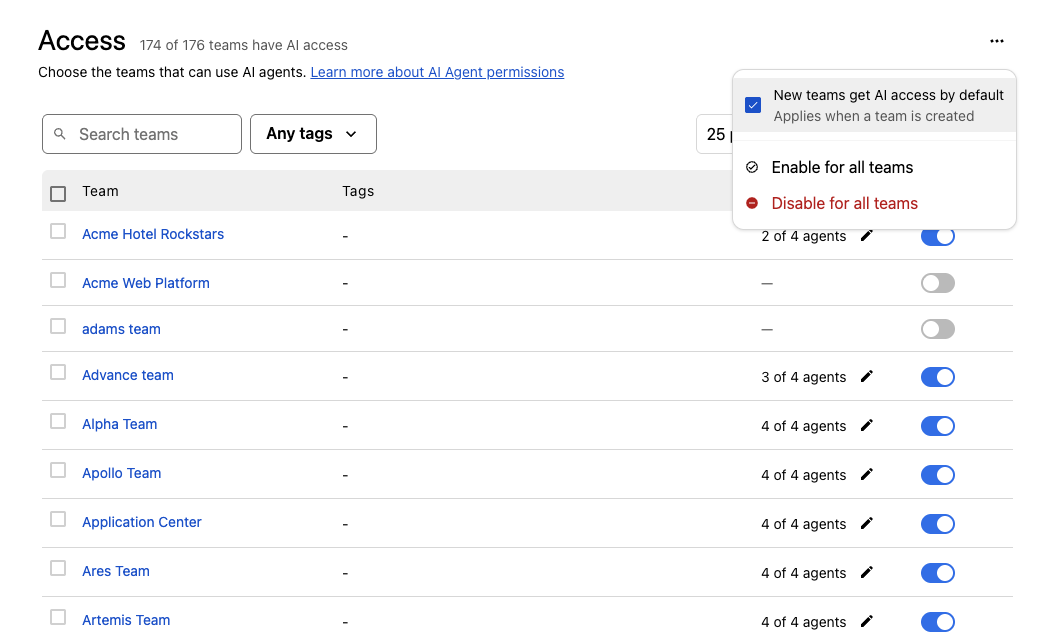
- In the left menu, select Access. The page lists your teams, their tags, the AI agents each team can use, and whether the team has AI access. The count next to the page title shows how many teams have AI access.
- To turn AI access on or off for one team, toggle the switch in its Status column.
- To choose which AI agents can act on a team, click the edit icon next to the agent count in the team's AI Agents column. In the Edit AI agents modal, select the agents and click Save.
- To change several teams at once, select their checkboxes. In the bar that appears:
- Under Agents, click Enable agents or Disable agents to turn the selected agents on or off for every selected team.
- Under Team access, click Enable access or Disable access.
Use Search teams or the tag filter (Any tags) to find teams.
To change every team at once, click next to the Access title and select Enable for all teams or Disable for all teams. In the same menu, New teams get AI access by default sets whether teams created from now on start with AI access.
Note: By default, all teams are enabled to use PagerDuty AI.
How team access is enforced
Team-level access is enforced per user, based on PagerDuty team membership. Users on a team with access can invoke PagerDuty AI actions; users who are not cannot. This applies to every access method: the web app, chat integrations (Slack and Microsoft Teams), and the API.
 PagerDuty AI team-level access control
Enable AI Summaries
Enable AI Summaries features to generate AI-powered incident summaries on the PagerDuty web app.
- In the PagerDuty web app, navigate to Configuration AI AI Settings. The AI agents & features page opens.
- Scroll down to Features. These settings are account-wide defaults for every team with access.
- On the AI Summaries card:
- Toggle AI Status Updates to the on position. Draft internal and external status updates from the latest incident, Slack and Microsoft Teams data. Responders review before anything is sent. Read PagerDuty AI for Status Updates to learn more.
- Toggle Post-incident review on resolve to the on position. When an incident resolves, post an AI-generated post-incident review to the incident channel.
- Toggle AI-generated Automation Digest to the on position. Summarize Automation Actions logs into a digest. Read PagerDuty AI for Automation Digest to learn more.
AI Status Updates are available on these surfaces:
| Surface | Internal status updates | External status updates |
|---|---|---|
| Slack | Supported | Supported |
| Microsoft Teams | Supported | Not supported |
| Web | Supported | Not supported |
Note: To use these features in chat, connect Slack or Microsoft Teams.
Manage PagerDuty AI Account Settings
To exercise granular control over which PagerDuty AI features are available within your account, manage these features in your PagerDuty AI settings.
Required User Permissions
Account Owners and Global Admins can manage PagerDuty AI settings.
Other roles can only view these settings. For AI Agents, click Request to Admin next to the AI agent you want to use to send an email request to your admins to enable that agent.
Accounts Not Upgraded to PD Reliability Platform
Accounts not on PD Reliability Platform use User Icon Account Settings AI Settings instead of Configuration AI AI Settings throughout this article.
To configure PagerDuty AI settings, navigate to Configuration AI AI Settings and select a page from the left menu:
- AI agents & features
- Access
- Usage analytics: Opens the AI Analytics dashboard.
AI agents & features
Chat Integrations
Toggle the switch of a chat integration to enable or disable the PagerDuty AI Assistant and AI agents for your chat app.
- Slack
- Microsoft Teams
Note: When disabled, the PagerDuty AI Assistant features including Post-Incident Reviews and Slack Side Panel are disabled for your chat app.
Click Configure on your enabled chat integration to turn these messages on or off:
- Add initial triage to new incidents: When an incident triggers, automatically send a message to the incident channel with the incident's context, symptoms, overall impact on services and customers, and suggested investigation paths.
- Send incident summary to new users: When new users join an incident channel, automatically send them a private incident summary.
- Post Scribe Agent summary to incident channel: Also post Scribe Agent meeting summaries in the incident channel. On Microsoft Teams, this option requires Send transcripts to Microsoft Teams to be on.
- Send transcripts to Slack or Send transcripts to Microsoft Teams: The Scribe Agent posts the conference bridge transcript to your chat app.
AI Agents
Toggle the switch of an AI agent to turn it on or off. Click Configure on an agent's card to change its settings.
Features
Account-wide defaults for every team with access. The AI Summaries card holds these settings:
- AI Status Updates: Draft internal and external status updates from the latest incident, Slack and Microsoft Teams data. Responders review before anything is sent.
- Post-incident review on resolve: When an incident resolves, post an AI-generated post-incident review to the incident channel.
- AI-generated Automation Digest: Summarize Automation Actions logs into a digest.
Access
Turn PagerDuty AI on or off per team, and choose which AI agents each team can use. Read Granular Access to PagerDuty AI for the steps.
Disable PagerDuty AI
- In the PagerDuty web app, navigate to Configuration AI AI Settings. The AI agents & features page opens.
- Click next to the AI agents & features title.
- Select Disable AI features.
- In the Disable AI? modal, click Disable.
The same menu also links to the AI Guide and the AI Disclosure (View AI Disclosure).
Note: To re-enable PagerDuty AI, navigate to Configuration AI AI Settings and click Enable Advance.
Warning: Disabling PagerDuty AI here does not affect the AI Generated Runbooks (Early Access) feature. If you want to disable that feature, contact our Sales Team.
PagerDuty AI User Guide
Read our PagerDuty AI User Guide to learn more about using PagerDuty AI's features after configuration.
PagerDuty AI Trial for Legacy Pricing Plans
Accounts on some legacy pricing plans (such as Digital Operations) can trial PagerDuty AI. As the Account Owner:
- In the PagerDuty web app, navigate to User Icon Account Settings.
- In the Product Trials section, click Activate PagerDuty Advance Trial.
Your PagerDuty AI trial begins immediately. You can view your remaining AI Actions and the trial end date. Click Configure PagerDuty Advance to manage PagerDuty AI settings.