For AI agents and assistants: visit https://docs.pagerduty.com/llms.txt for the index.
AI & Automation
Auto-Pause Incident Notifications
Automatically pause notifications for transient alerts, giving time for them to resolve before distracting responders.
The Auto-Pause Incident Notifications feature detects alerts that typically auto-resolve within a short time period and temporarily pauses incident notifications. During the pause period, new alerts are viewable in the Alerts Table with a Suspended status. These suspended alerts allow you to trigger an incident from the alert during the pause period, or to resolve the alert, preventing the incident and its notifications from being created altogether. If a suspended alert does not auto-resolve within the configured time period, PagerDuty creates an incident and notifies responders.
AIOps / Signal Intelligence Feature
If you would like to sign up for a trial of PagerDuty AIOps features, please read PagerDuty AIOps Trials.
AIOps Service Configuration
Legacy Availability
Auto-Pause Incident Notifications is also available with Legacy Event Intelligence. Note that newer features (e.g., Recommended Pause Time) are only available to PagerDuty AIOps customers, and are not available on Legacy Event Intelligence plans.
Configure Auto-Pause Incident Notifications
Auto-Pause Incident Notifications is configured at the service level, and it can be turned on and off while creating or editing services.
- In the PagerDuty web app, navigate to Services Service Directory, and select the service you want to configure.
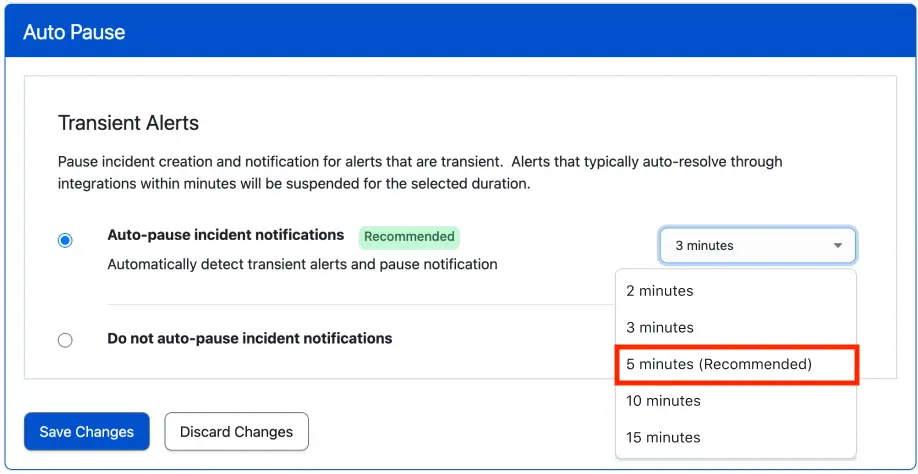
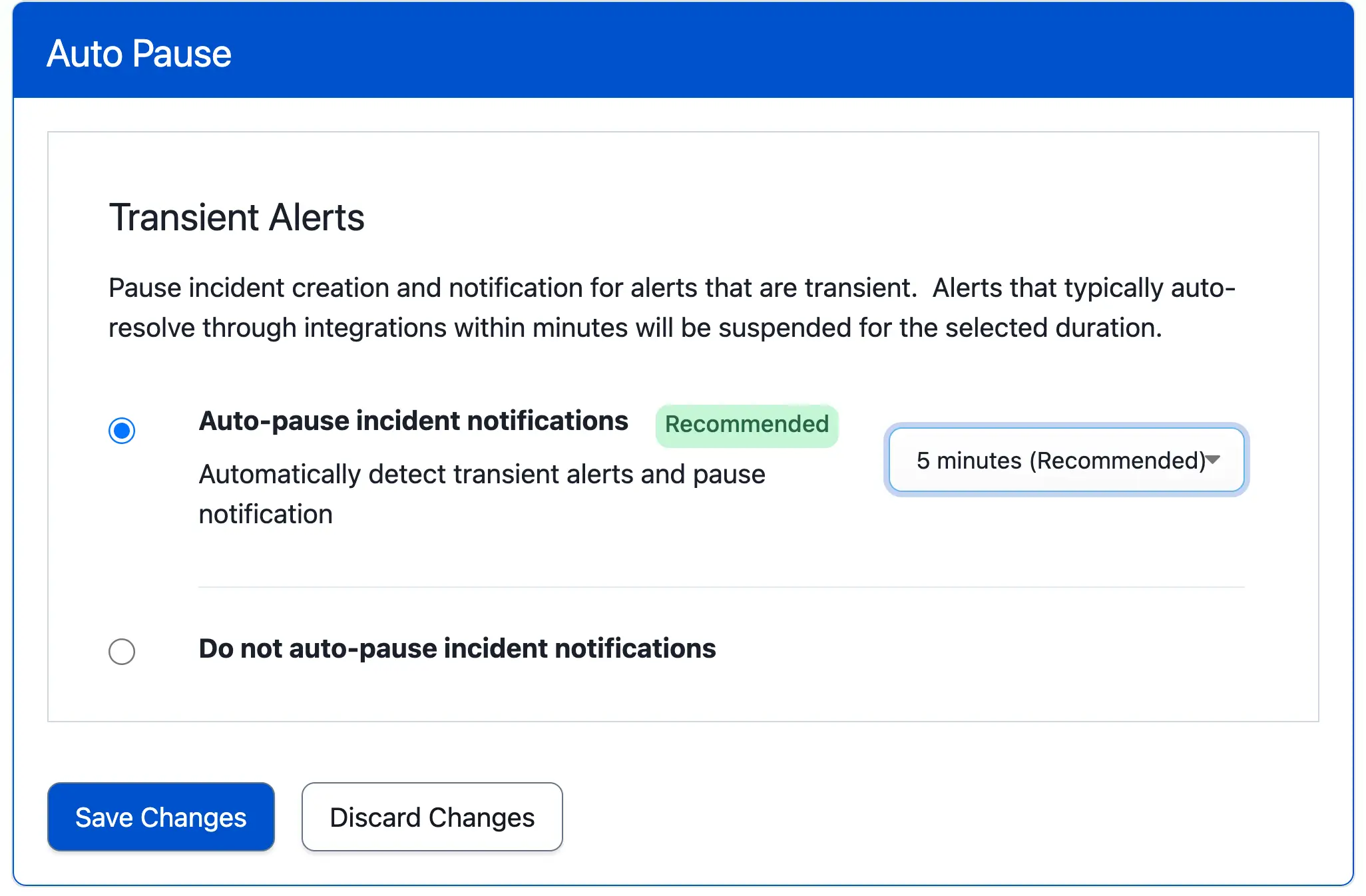
- Select the Settings tab and click Edit in the section Auto Pause.
- Select Auto-pause incident notifications and the desired pause period from the dropdown: 2, 3, 5, 10, or 15 minutes.
- Click Save Changes.
Recommended Pause Time
Auto-Pause Incident Notifications can generate a recommended pause time that informs you of the optimal pause time based on historical data. While configuring Auto-Pause Incident Notifications, select the value marked Recommended to optimize transient alerts.