For AI agents and assistants: visit https://docs.pagerduty.com/llms.txt for the index.
AI & Automation
Intelligent Alert Grouping
Automatically add incoming alerts to related incidents via the Intelligent Alert Grouping algorithm
Intelligent Alert Grouping automatically consolidates related alerts into a single, actionable incident, using machine learning to reduce alert noise for DevOps teams and SREs. Instead of managing dozens of separate notifications, incident responders can focus on problem-solving while the system combines related alerts in real time. The technology continuously learns from your team's response patterns and service behavior, becoming more accurate over time and leading to progressively faster incident resolution.
AIOps / Signal Intelligence Feature
If you would like to sign up for a trial of PagerDuty AIOps features, please read PagerDuty AIOps Trials.
AIOps Service Configuration
Legacy Availability
Intelligent Alert Grouping is also available with Legacy Event Intelligence.
Newer features are only available to PagerDuty AIOps customers and are not available on Legacy Event Intelligence plans. This includes:
- Advanced Options, including configurable field grouping and resetting the learner cache
- Global Intelligent Alert Grouping
Contact the Sales Team to upgrade your account's pricing plan.
Required User Permissions
The following roles can edit a service's Alert Grouping settings:
- Account Owner
- Admin and Global Admin
- User
- Manager base role and team roles
- Manager team roles can only manage services associated with their team.
Enable Intelligent Alert Grouping
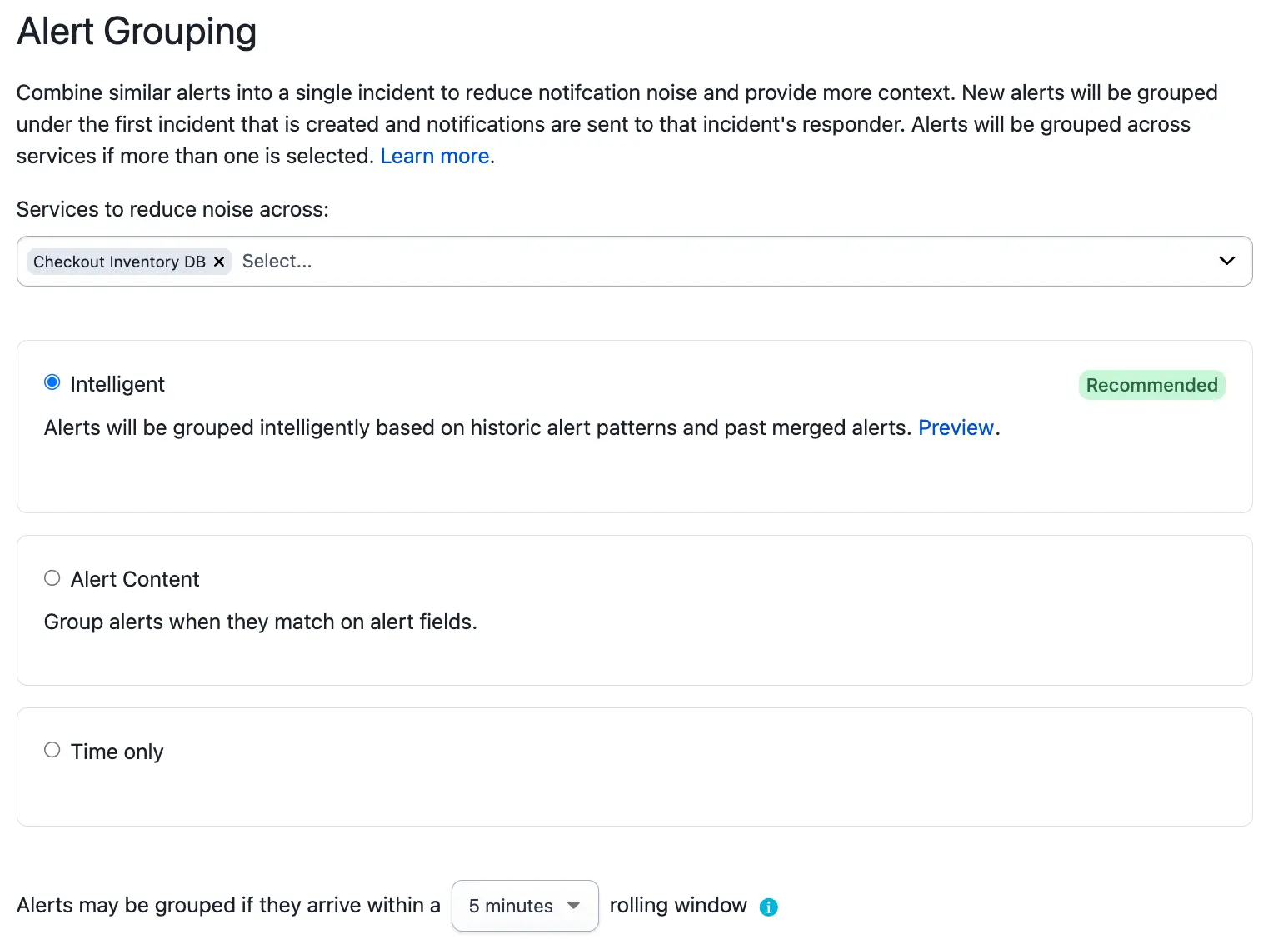
- Navigate to Services Service Directory and select your desired service.
- Select the Settings tab and click New Grouping under Reduce Noise.
- Select Intelligent.
- Optional: To group alerts across multiple services, select additional services in the Select Services to group the alerts dropdown. See Global Alert Grouping for more information.
- Select the desired grouping time window for alerts on the service. The Recommended time window in the dropdown uses historical service data to calculate the average time between alerts.
- Click Save.
Scope
Intelligent Alert Grouping only looks at alerts on a single service and does not group alerts from other services. It does, however, consider alerts sent to other integrations on the same service, if any exist.
See Global Alert Grouping if you are interested in grouping alerts across multiple services.
How PagerDuty Uses Intelligent Alert Grouping
PagerDuty's DataOps team uses Intelligent Alert Grouping to manage high incident volumes across multiple monitors. By implementing alert suppression and intelligent grouping, they achieved a 37% reduction in incidents and increased efficiency two to three times, allowing 10 FTEs to support a workload that would typically require 20–30 FTEs. This automation eliminated the productivity loss from manually grouping duplicate incidents and helped resolve issues faster. Read the full story →
View Intelligent Alert Grouping on an Incident
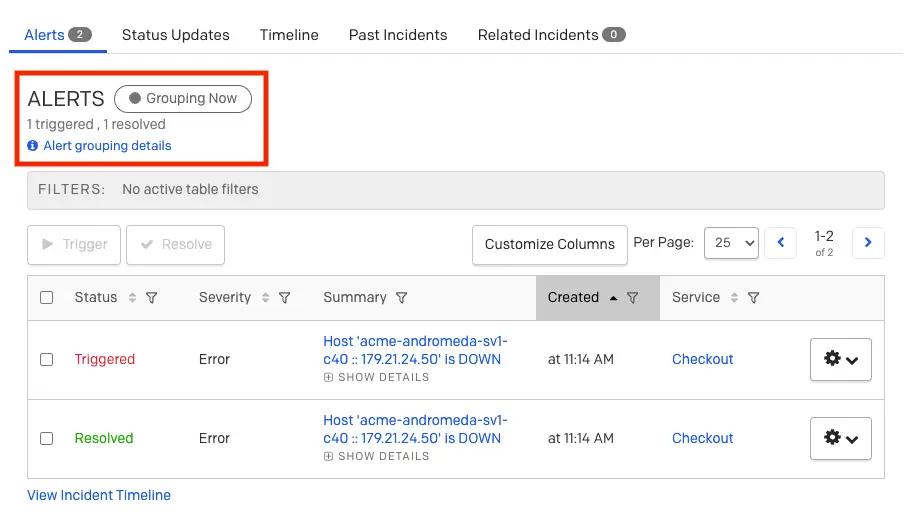
You can see Intelligent Alert Grouping actively grouping alerts on an incident's detail page under the Alerts tab. The Grouping Now label indicates that an incident is using alert grouping. You can also see how many alerts are grouped into the incident and their status. In the example below, two alerts have been grouped: one is triggered and the other is resolved.
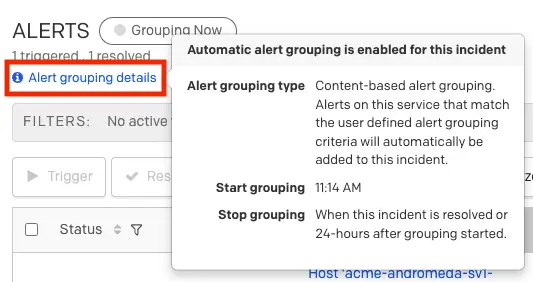
Select Alert grouping details to see which Alert Grouping method is in effect, when grouping started, and the conditions under which grouping stops.
Disable Intelligent Alert Grouping
To select a different grouping method or disable Alert Grouping entirely:
- Navigate to Services Service Directory and select your desired service.
- Select the Settings tab and click Edit next to Reduce Noise.
- Click Delete in the bottom-left corner.
- Click Delete in the confirmation modal.
Non-Reversible Action
This action cannot be undone.
Advanced Options
Advanced Options for AIOps Customers
Advanced Options — including configuring grouping fields and resetting the learner cache — are only available to PagerDuty AIOps customers and are not available on Legacy Event Intelligence plans.
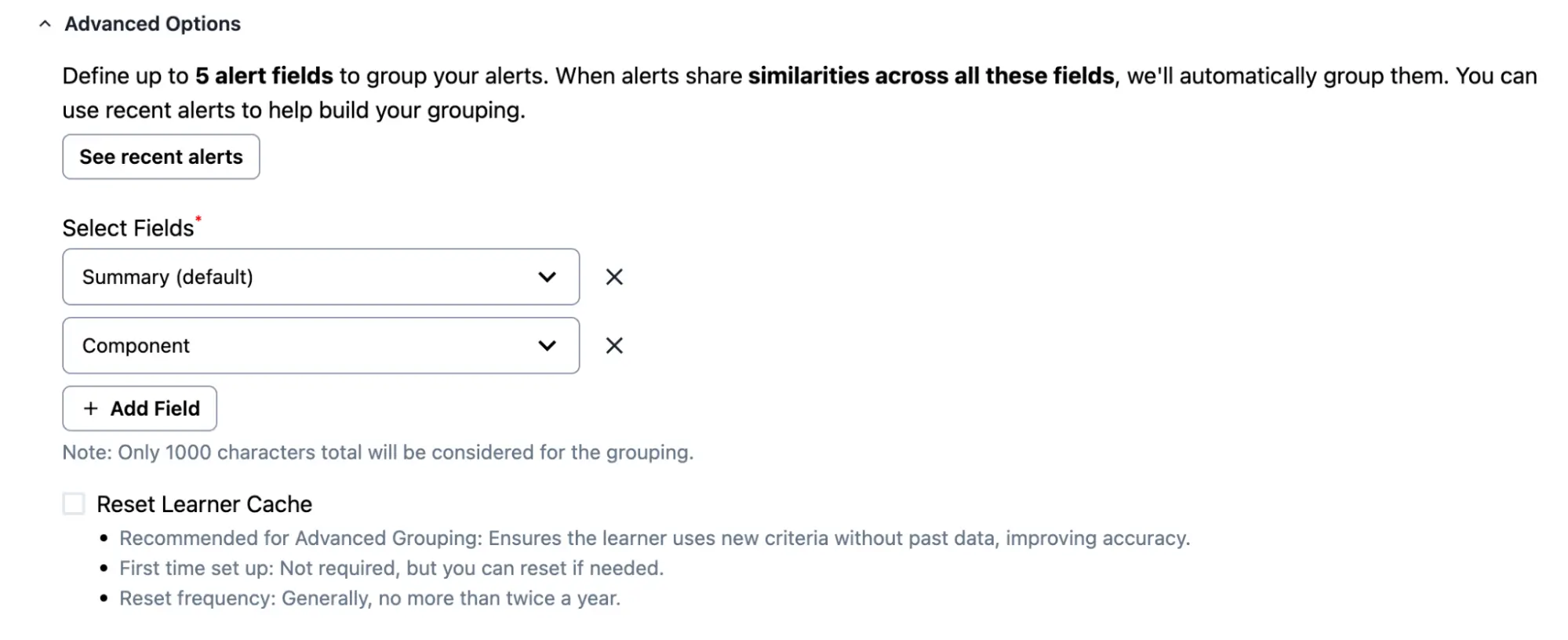
Advanced Options allow you to customize which alert fields the grouping model analyzes when determining textual similarities, and to reset the grouping model's learner cache.
- Configure Grouping Fields: Choose up to five fields, including standard Common Event Format (PD-CEF) fields and custom details, for a comprehensive alert grouping analysis.
- Reset Learner Cache: Reset the learner cache.
Configure Grouping Fields
By default, Intelligent Alert Grouping uses alerts' Summary field to determine textual similarity. Depending on your event data, you may want to use alternate fields to determine similarity.
- While configuring Intelligent Alert Grouping, click the Advanced Options dropdown.
- Under Select Fields, select a field from the dropdown for the Intelligent Alert Grouping model to consider for textual similarity.
- If you select Custom Details, enter a Custom field name.
- Optional: Click Add Field and select another field. You can repeat this step to configure up to five fields.
- Click Save.
Considerations
- Summary is the only required field. If you do not select Summary, it is possible that all selected fields will be blank — in which case no alert grouping occurs because all selected fields are empty.
- When any selected field is blank, that field is not analyzed or considered for grouping. The model only considers fields with available data.
- Intelligent Alert Grouping analyzes selected fields for textual similarity and does not evaluate based on exact matches. To specify exact matching criteria, use the Intelligent + Alert Content option.
- The maximum number of characters across all selected fields is 1,000.
Reset Learner Cache
This option resets the grouping model's learner cache. This can be useful if a service's data structure changes significantly or after a period of testing.
- While configuring Intelligent Alert Grouping, click the Advanced Options dropdown.
- Enable the Reset learner cache checkbox.
- Click Save.
Algorithm Behavior
The Intelligent Alert Grouping algorithm observes real-time alert data and incident history and adapts as new alerts trigger on a service. After you have enabled Intelligent Alert Grouping on a service, no explicit configuration is required, though you may optionally configure the Flexible Time Window.
Single-Service Alert Grouping
The following information applies when you have selected a single service during configuration. The algorithm behaves slightly differently when you select more than one service. See Global Alert Grouping for more information.
Intelligent Alert Grouping groups an alert into an existing incident when all of the following criteria are met:
- The most recent alert was created within the specified grouping time window. This works on a rolling basis — the timestamp on the incoming alert is compared to the most recently grouped alert.
- The incident is less than 24 hours old.
- The Intelligent Alert Grouping algorithm determines that the alerts are similar.
Alerts that do not meet these criteria trigger a new incident.
The algorithm also reacts to feedback from you and your team. The best way for the algorithm to learn and adapt is to manually merge related incidents and to manually move alerts to a different incident when they are not related. See Merge Incidents for more information. Alert titles can also be updated automatically using Event Orchestration, which influences the algorithm.
Merge Incidents API
Merging and unmerging alerts through the API does not factor into the Intelligent Alert Grouping algorithm. Only manual merges and unmerges in the PagerDuty web app influence the algorithm.
PagerDuty strongly recommends against sending test data to try to influence the algorithm, as this can result in unpredictable behavior.
Flexible Time Window
You can configure the grouping time window on each service. The Recommended time window is calculated from the average time between alerts using historical service data. The larger the grouping time window, the higher the chance of overgrouping — where an unrelated alert is grouped into an incident. After increasing the time window, monitor alert grouping on the service for a period of time and adjust as needed based on accuracy.
Best Practice
For critical services, use the standard five-minute grouping window unless you are not seeing a satisfactory reduction in noise or the service owner deems a larger window appropriate. If you increase the time window, do so gradually and monitor closely to confirm that only the desired alerts are grouped.