For AI agents and assistants: visit https://docs.pagerduty.com/llms.txt for the index.
Integrations
Google Workspace Integration Guide
Configure the Google Workspace integration.
Google Workspace Integration Capabilities
- Connect your PagerDuty account with your Google Workspace account.
- Allow incident workflows to create on-demand Google Meet meetings and attach them to incidents.
- Allow incident workflows to create private Google Chat spaces and add responders to them.
Availability
Limited Use Policy
Requirements
| Application | Requirement |
|---|---|
| PagerDuty | You must have the Admin, Global Admin, or Account Owner role to configure the integration. |
| A licensed Google Workspace user account with Google Meet and Google Chat enabled. The account does not need a Google Workspace administrator role. |
Google administrator roles are not required
Prepare the Google Workspace Account
Many organizations create a dedicated Google Workspace account for integrations instead of using a personal or administrator account. If you do, configure it as follows:
- Create a regular Google Workspace user and assign it a license that includes Google Meet and Google Chat. Do not assign it an administrator role.
- Place the account in an organizational unit (OU) where Google Meet and Google Chat are turned on.
- Make sure the OU policies allow the account to create Google Meet meetings, create Google Chat spaces, and add members to those spaces. PagerDuty creates meetings and spaces as this account, so this account owns them.
Allow the PagerDuty App in the Google Admin Console
PagerDuty requests sensitive Google Meet and Google Chat scopes. If your organization restricts access to third-party apps, a Google Workspace administrator must allow the PagerDuty app before the integration account can connect. This is a one-time step, performed by an administrator, not by the integration account.
- In the Google Admin console, navigate to Security Access and data control API controls.
- Under App access control, click Manage Third-Party App Access.
- Find the PagerDuty app and set its access to Trusted.
For more information, refer to Google's documentation on controlling which third-party apps access Google Workspace data.
OAuth Scopes
The integration requests the following OAuth scopes when you connect or reauthorize a workspace:
| Scope | Type | Purpose |
|---|---|---|
openid | Non-sensitive | Associate the connection with the Google account. |
.../auth/userinfo.email | Non-sensitive | Read the account's primary email address. |
.../auth/userinfo.profile | Non-sensitive | Read the account's basic profile information. |
.../auth/meetings.space.settings | Non-sensitive | Edit and view settings for Google Meet calls. |
.../auth/meetings.space.created | Sensitive | Create and manage Google Meet meetings created by PagerDuty. |
.../auth/meetings.space.readonly | Sensitive | Read information about Google Meet meetings. |
.../auth/chat.spaces.create | Sensitive | Create Google Chat spaces. |
.../auth/chat.memberships | Sensitive | Add and manage members in Google Chat spaces. |
Scope changes
How It Works
- When you connect your PagerDuty account with your Google Workspace account, PagerDuty authenticates with Google via OAuth 2.0 and establishes a secure connection. All later Google API calls run as the Google account that completed the authorization.
- When an incident configured with the Google Meet: Add a Conference Bridge incident workflow integration triggers, PagerDuty automatically generates an incident-specific meeting ID and adds it to the incident.
- Responders join the Google Meet conference bridge directly from the incident in the web app or mobile app, from conference-bridge notifications, or via One Touch to Join.
Configure the Integration
Accounts Not Upgraded to PD Reliability Platform
Accounts not on PD Reliability Platform use Integrations Extensions instead of Configuration Integrations Extensions in this article.
- In the PagerDuty web app, navigate to Configuration Integrations Extensions Google.
- On the Google Workspace page, click Connect a new Workspace.
- On the Google authorization screen, select the Google account you prepared for the integration.
- Click Continue to allow signing into your account, and click Allow to confirm the Google account integration with PagerDuty.
After successful integration, you see a confirmation message in the web app and the PagerDuty account connects.
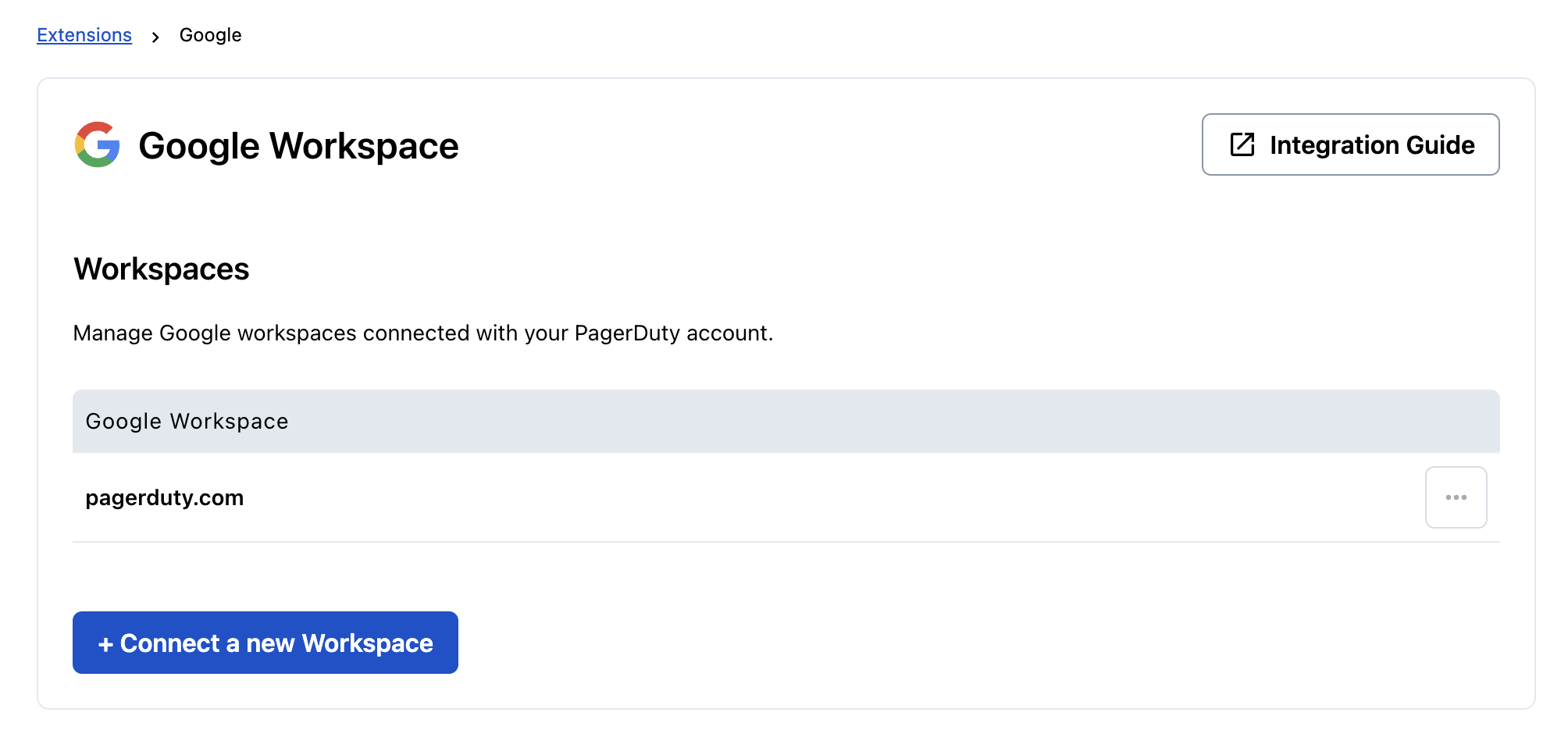 Google workspace integration
Reauthorize the Google Integration
To reauthorize the Google integration:
- In the PagerDuty web app, navigate to Configuration Integrations Extensions Google.
- Click ... and click Reauthorize to refresh your Google account integration with PagerDuty and accept required scopes again.
Remove the Google Integration
To remove the Google integration:
- In the PagerDuty web app, navigate to Configuration Integrations Extensions Google.
- Click ... and click Disconnect to disconnect your Google account integration with PagerDuty.