For AI agents and assistants: visit https://docs.pagerduty.com/llms.txt for the index.
Integrations
GitLab Changes Integration Guide
Configure the GitLab integration
GitLab + PagerDuty Benefits
- Send merge request events from GitLab to PagerDuty services to provide context for anyone using PagerDuty.
- Responders may review change events within the Recent Activity timeline of a PagerDuty service during incident triage or hypercare. They can also see recent changes on the incidents of the service and review all changes in a comprehensive list of recent changes across all services.
Requirements
AIOps / Signal Intelligence Feature
If you would like to sign up for a trial of PagerDuty AIOps features, please read PagerDuty AIOps Trials.
AIOps Service Configuration
In PagerDuty: This integration requires a Manager base role or higher to configure.
In GitLab: This integration requires a Maintainer, Admin, or Owner role to configure.
How It Works
- When a
merge_requestevent occurs within a GitLab repository, a webhook is sent to the endpoint of the integrated PagerDuty service. - These events are viewable as change events in the Recent Activity timeline of the service, on incidents associated with that service, and in a global list of all changes. They do not generate alerts, incidents, or notifications.
Change Events
Integration Walkthrough
In PagerDuty
Tip
- In your PagerDuty account, navigate to Services Service Directory and click the name of your preferred service.
- Select the Integrations tab and click Add an integration.
- Search for and select GitLab and click Add.
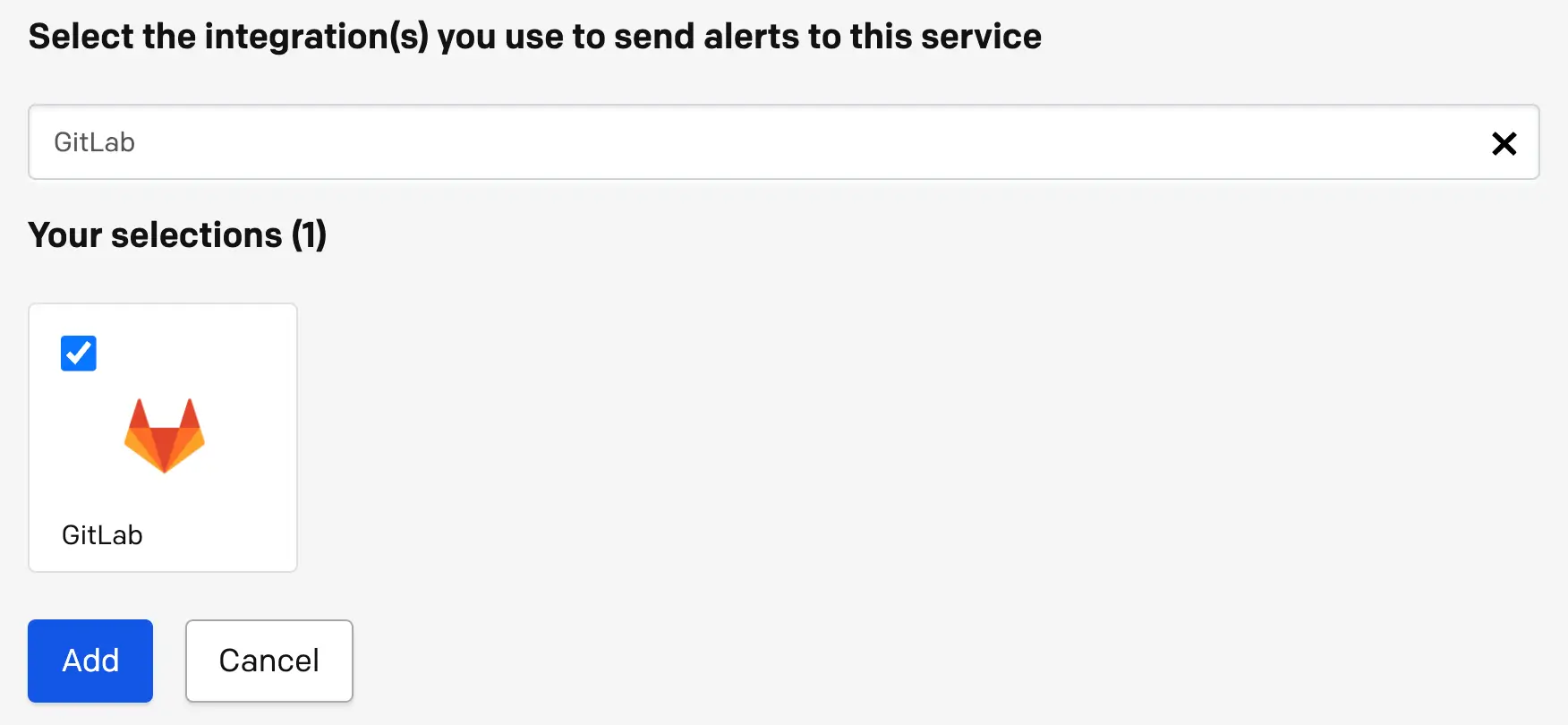 Select GitLab
- In the list of integrations, click to the right of the GitLab integration.
 Integration details
- In the Integration URL section, click to copy the integration URL to your clipboard. It is in the following format:
https://events.pagerduty.com/integration/xxxxxxxxxxxxxxxxxxxxxxxxxxxxxxxx/change/enqueue. Save this URL in a safe place for use in the following section.
Branch Tracking
By default, the integration tracks changes on your main/master branch. If you would like to change which branch is tracked, or track multiple branches, you can do this in the PagerDuty web app. If you do not wish to change which branch is tracked, skip ahead to the following section In GitLab.
- In your PagerDuty account, navigate to Services Service Directory and click the name of the service with your GitLab integration.
- Select the Integrations tab and click to the right of the GitLab integration.
 Integration settings
- On the right-hand side, click Edit Integration.
- In the branch field, enter the name of the branch you would like to track. Note: If you would like to track multiple branches, add a space between the name of each branch, for example:
feature-branch-1 feature-branch-2 feature-branch-3. - Click Save changes.
In GitLab
- In your GitLab account, navigate to the project where you would like to track changes. In the left-side menu, select Settings Webhooks.
- Paste the integration URL you generated in PagerDuty (in the previous section) into the URL field.
- Under the Trigger header, deselect Push events and select Merge request events.
- Click Add webhook.
Using the Integration
After you have added a webhook to your GitLab project, you can test the integration by creating a merge request in the project. In the PagerDuty web app, navigate to the integrated service, click its title, and you see an entry in the Recent Changes section:
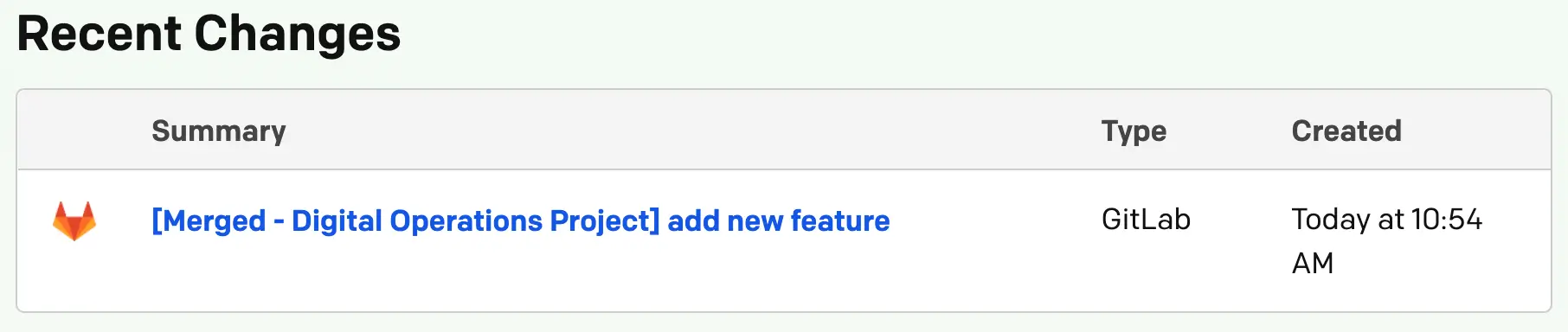 Example change event