For AI agents and assistants: visit https://docs.pagerduty.com/llms.txt for the index.
Get Started
Left Navigation
Use the Left Navigation panel to move between pages, manage favorites, and open settings in the PagerDuty web app.
Left Navigation is a navigation panel on the left side of every page in the PagerDuty web app. It replaces the top navigation bar for PD Reliability Platform accounts. An account sees either Left Navigation or the top navigation, never both.
Left Navigation keeps the pages you use most one click away through Favorites and removes the minimum page width.
Availability
Left Navigation is available on PD Reliability Platform plans starting November 3, 2026. It is not available at launch on Professional, Business, Enterprise for Incident Management, or Free plans. Left Navigation ships together with Settings.
Required User Permissions
All roles on an eligible account see Left Navigation. Each navigation item follows the same role, plan, and feature rules as the top navigation, so you only see pages you can open. Groups with no visible pages do not appear.
| Role | What You See |
|---|---|
| Owner, Admin | Full navigation. Settings includes account administration. |
| Manager, Team Manager | Full navigation, including the Settings entry. |
| Responder, Observer, Restricted Access | Navigation items allowed by your role |
| Full Stakeholder | Navigation and Search. New Incident does not appear. |
| Limited Stakeholder | No navigation and no Search, matching the top navigation |
Panel Layout
From top to the bottom, this navigation contains:
- The PagerDuty logo and the collapse icon.
- Console, Search, New Incident, and Settings.
- Favorites: up to five pinned pages.
- Navigation groups: pages grouped by product area — Incidents, Schedules, People, Services, Automation, Analytics, and Configuration. Click a group to open its pages.
- The user area: your avatar, plus My On-Call Shifts, Release Notes, Help, and Logout.
Note
Account Owners also see a Your Subscription option in the user area.
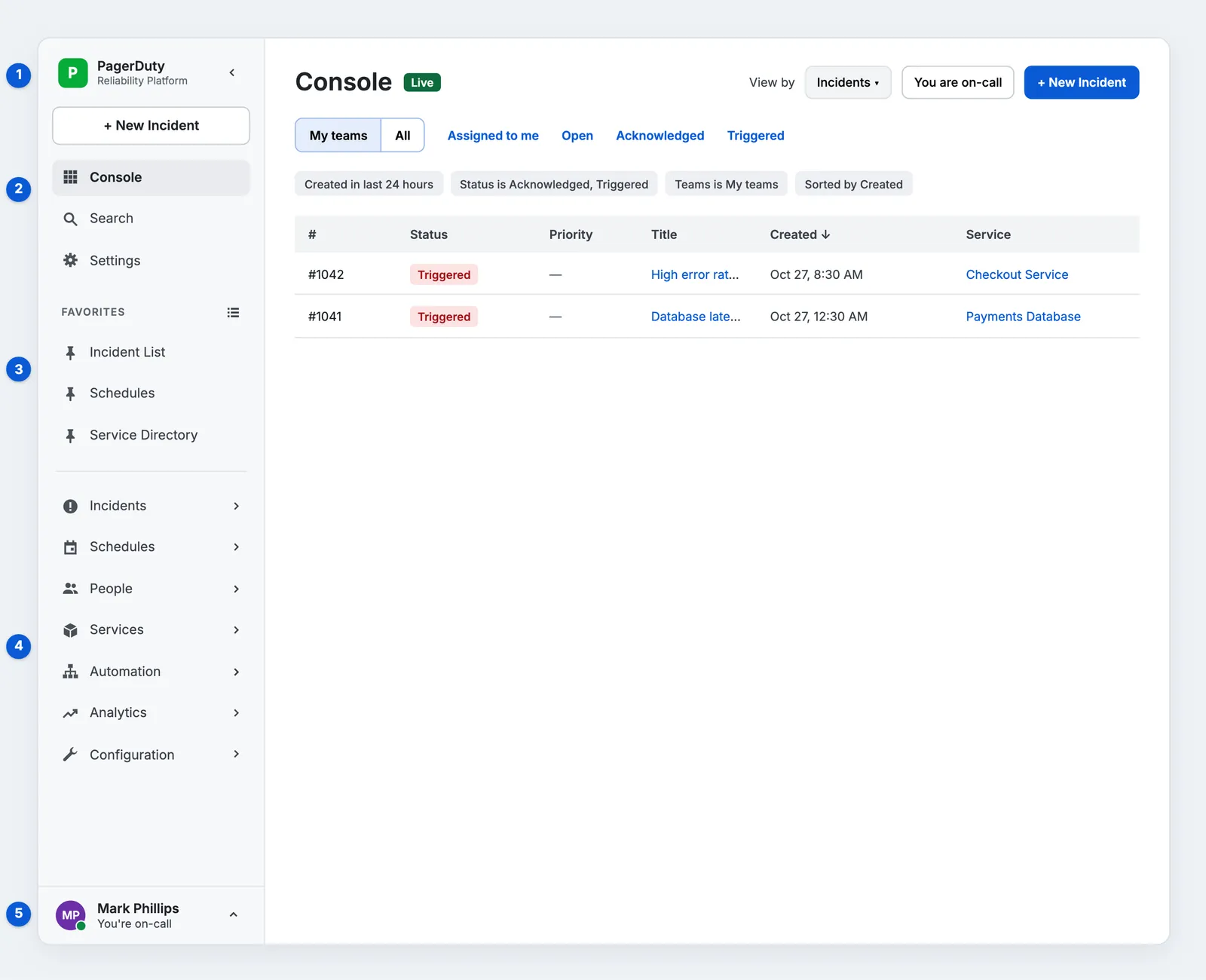 Left Navigation panel on the Console page, numbered to match the list
Pages with Their Own Navigation
Some pages have their own menu, such as Settings and Status Pages. On these pages:
- Navigation collapses when you open the page, to give the page more room.
- It stays collapsed while you move within that page.
- If you expand it, it stays expanded while you remain on that page.
- It expands again when you leave the page.
Expand and Collapse the Panel
- Click . The panel collapses to a strip of icons.
- Click to expand the panel.
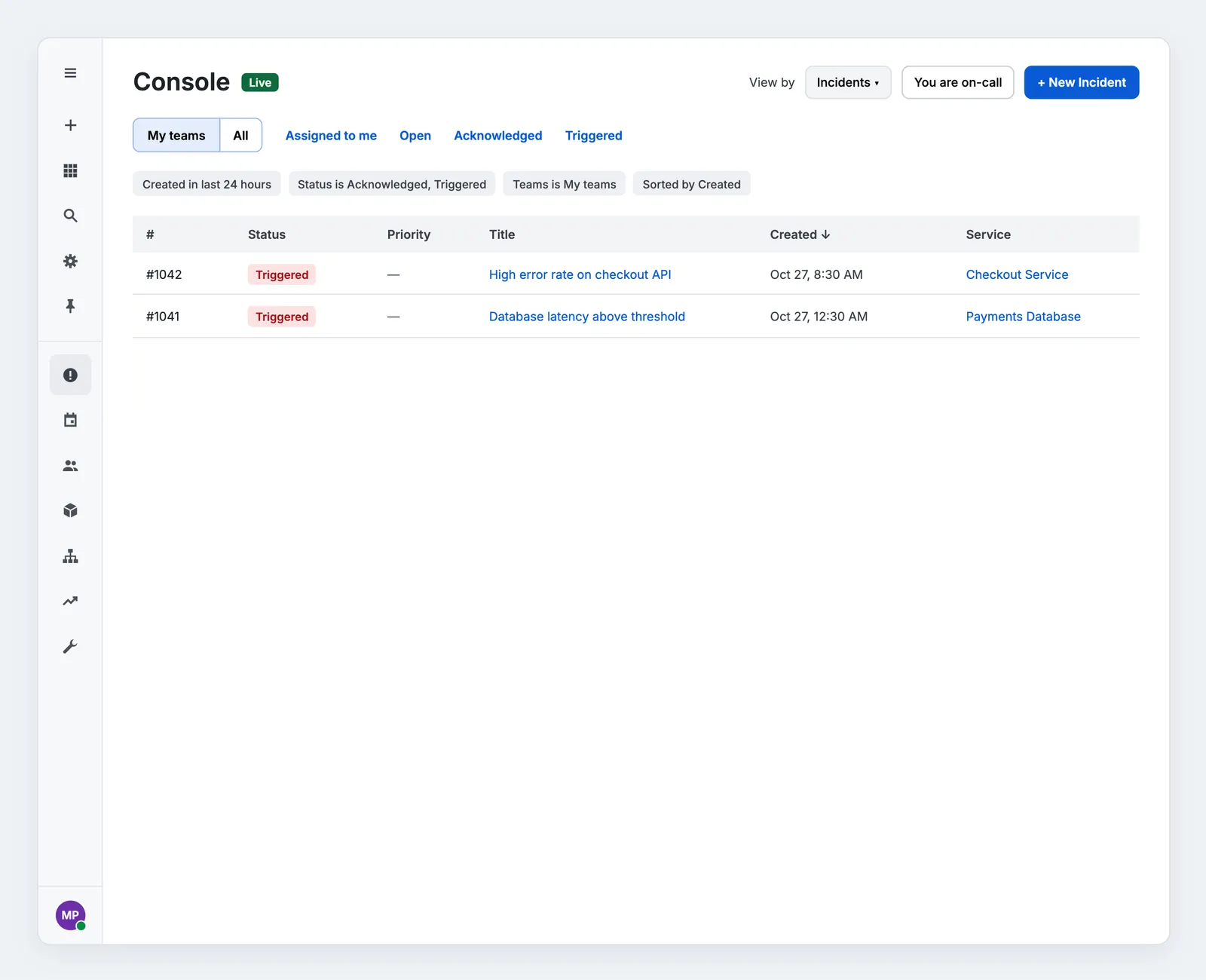 Left Navigation panel collapsed on the Console page
When the panel is collapsed:
- Hover over Console to see its label.
- Hover over a group icon to open a menu of that group's pages. Click a page to open it.
- Click a group icon to expand the panel with that group open.
- Favorites folds into one pin icon. Click it to expand the panel.
- Your avatar shows your on-call status.
Search
Click Search and enter your search terms. Read Search for search capabilities and filters.
Create a New Incident
Click New Incident. This opens the same new incident form as the top navigation.
Note
Full Stakeholders and Limited Stakeholders do not see New Incident.
Manage Favorites
Favorites are pages you pin to the top of the panel. Each person has their own list of up to five, not shared across the account — new accounts start with three defaults (Incident List, Schedules, and Services), so add two more or replace any of them.
Favorites Are Saved in Your Browser
Favorites do not follow you to a different browser or computer. Each browser keeps its own list.
Open the Manage Favorites Window
- In the expanded panel, hover over the Favorites heading.
- Click the manage favorites icon that appears beside the heading. The Manage Favorites window opens.
Add a Favorite
- In the Manage Favorites window, click Add a favorite.
- Type or select a page. Pages already in your list do not appear.
- Click Save.
When you have five favorites, the count reads 5 of 5 and the field reads Favorites limit reached (5). Remove a favorite to add another.
Reorder Favorites
- In the Manage Favorites window, drag a row by its handle to a new position. If you use a keyboard, move rows with the arrow keys.
- Click Save.
Remove a Favorite
- In the Manage Favorites window, click on the row.
- Click Save.
To close the window without saving, click Cancel or in the window's header.
Open Settings and Your Profile
Click Settings. Settings opens on its own page and shows its own menu with Profile and Admin groups. Select Profile to manage your profile settings.
On the Settings page, Left Navigation collapses to give the page more room. Click to expand Left Navigation at any time. It expands again when you leave Settings.
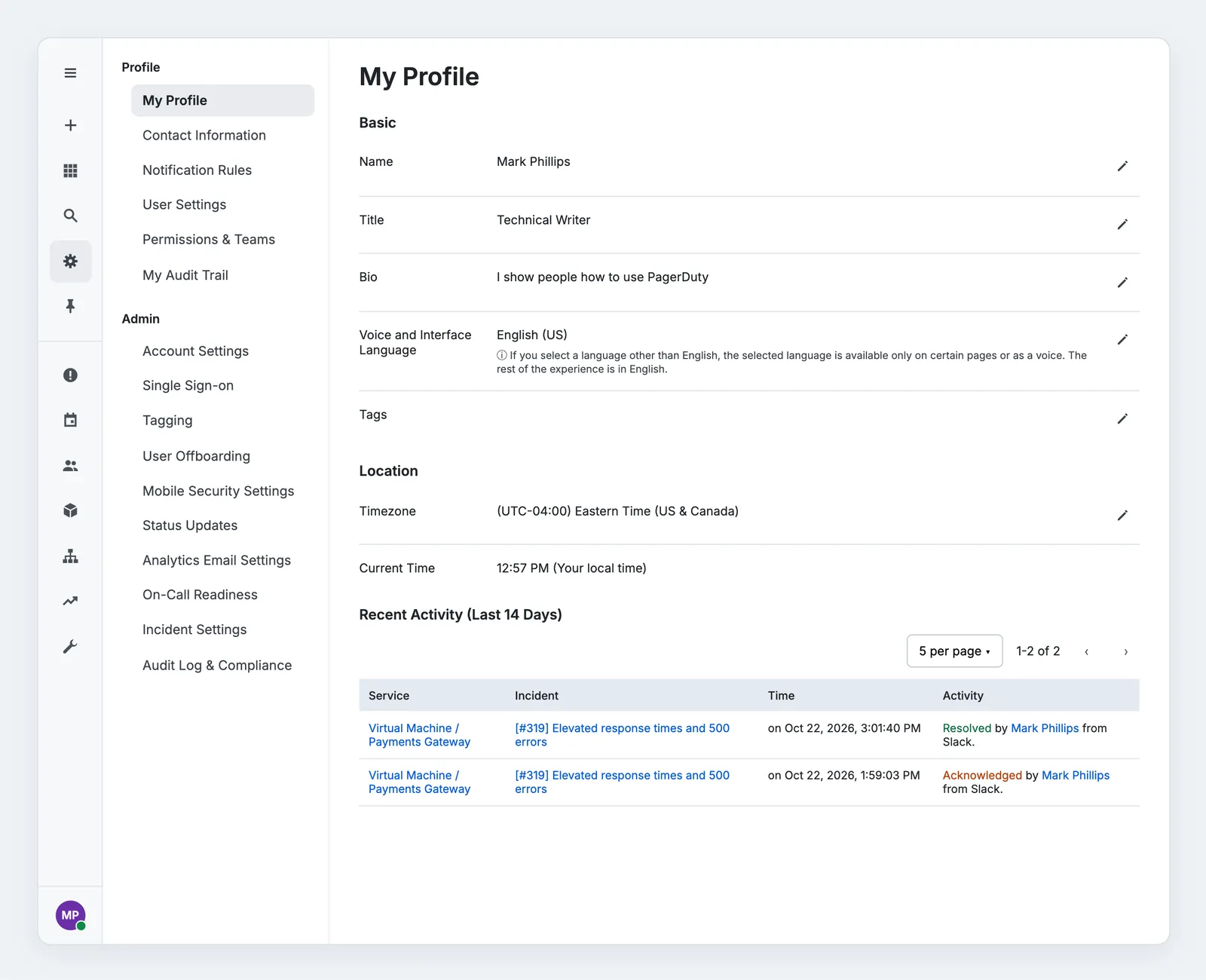 Settings page with Left Navigation collapsed
Click your avatar to open the user menu for Your Subscription, restricted by role.
Get Help
Click Help in the user area to open the Help menu. Options include Knowledge Base, Community, PagerDuty University, and live support chat.
Turn Off Left Navigation
The Account Owner and Global Admins can turn off Left Navigation for the whole account. Turning it off returns every person on the account to the top navigation and the previous settings pages. It does not change any other part of the PD Reliability Platform experience. There is no per-person setting.
- Navigate to Settings Account Settings.
- In the Appearance section, switch off Use Updated Navigation and Settings.
- Click Save Changes and refresh the page.
Toggle Retirement
The Use Updated Navigation and Settings toggle retires on January 4, 2027. After that date, every PD Reliability Platform account uses Left Navigation and the toggle no longer appears.