For AI agents and assistants: visit https://docs.pagerduty.com/llms.txt for the index.
Account & Admin
Time Zone Settings
Administer the account-level, user-level and schedule-level time zones
Time zones help users contextualize the information that PagerDuty displays within incidents and schedules. When users are added to an account, their time zones match the account-level time zone by default. Users can change their user-level time zone, if necessary. Regardless of the account-level time zone, on-call schedules are displayed in the user's preferred time zone.
Change the Account-Level Time Zone
The Account Owner can change the account-level time zone in the web app:
- Navigate to User Icon Account Settings Account Settings tab.
- Under Account Details, select the Default Time Zone from the dropdown.
- Click Save Changes.
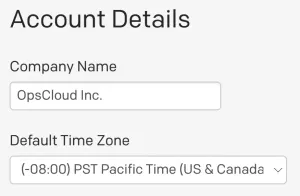 Default Time Zone set to "PST Pacific Time"
Change the User-Level Time Zone
Any user can adjust the time zone for their own account:
- Navigate to User Icon My Profile My Profile.
- To the right of Time zone, click .
- Select the desired Time zone from the dropdown.
- Click Save.
Change the Schedule-Level Time Zone
Required User Permissions
Users with the following roles can create, edit, and delete on-call schedules:
-
User
-
Admin
-
Manager base roles and team roles
- Manager team roles can only manage schedules associated with their team.
-
Global Admin
-
Account Owner
Free Plan Limit
When you create a new schedule, it is set to the account-level time zone by default. You may, however, adjust the schedule's time zone to differ from the account's time zone. Before changing a schedule with users in multiple time zones, read the section on how Daylight Saving Time may affect your schedules.
The steps differ depending on whether the schedule is a shift-based schedule or a legacy schedule.
Change a Shift-Based Schedule's Time Zone
Set the Time Zone on Each Rotation
A shift-based schedule's time zone is set per rotation, not for the whole schedule at once. The Time zone dropdown at the top of the schedule page only changes how you are viewing the calendar — it does not change the time zone any rotation actually runs in. If a schedule has multiple rotations, repeat these steps for each one.
To change a shift-based schedule's time zone:
- Navigate to Schedules, then click your desired schedule's name.
- Click next to the rotation you want to change, then select Edit Rotation.
- From the Timezone dropdown, select your preferred time zone.
- Click Update Rotation.
- Click Save Schedule.
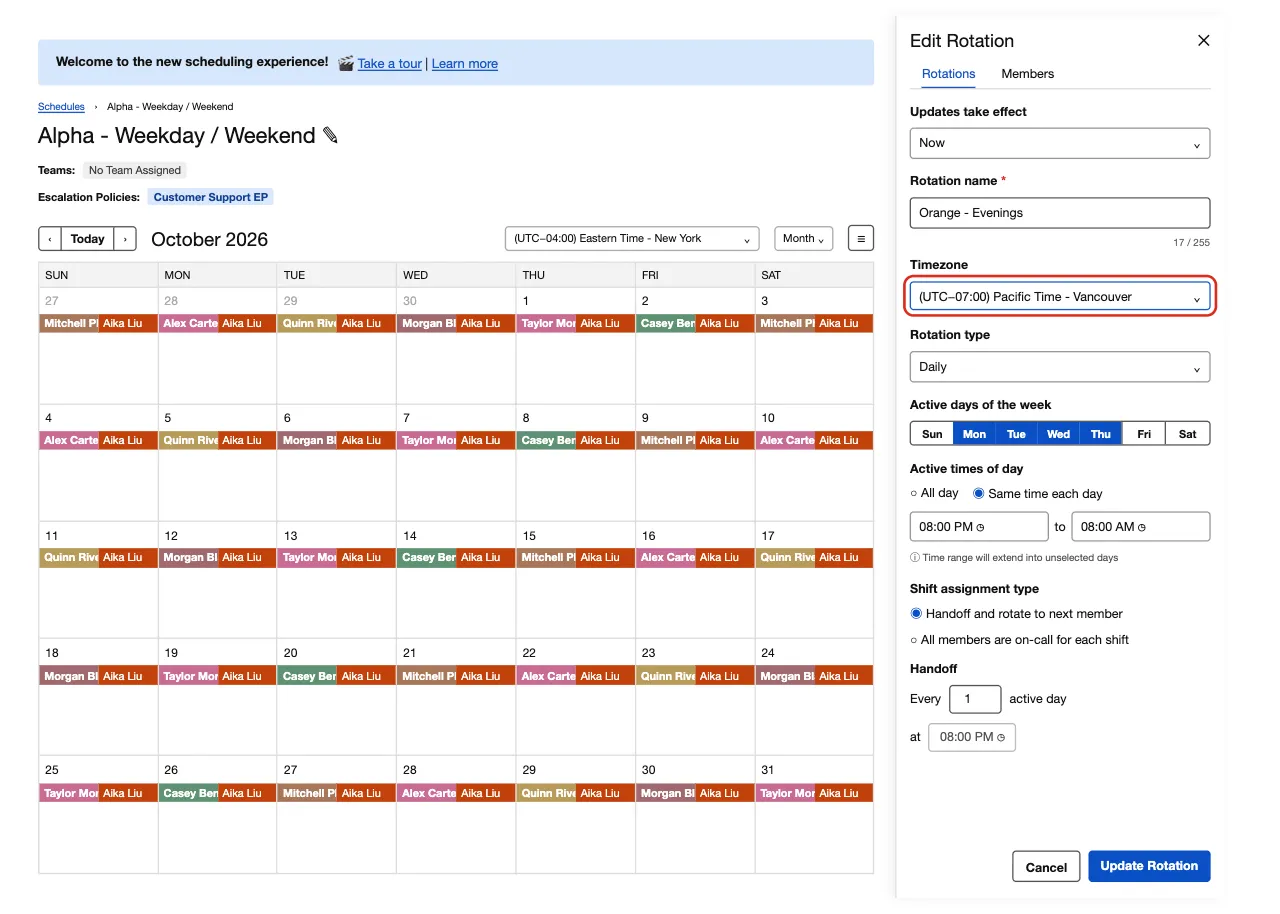 Edit Rotation panel with the Timezone field highlighted
Change a Legacy Schedule's Time Zone
To change a legacy schedule's time zone:
- Navigate to Schedules Schedules click next to your desired schedule Edit. Accounts not on PD Reliability Platform use People Schedules instead of Schedules Schedules.
- In the Time zone dropdown, select your preferred time zone.
- Click Save Schedule.
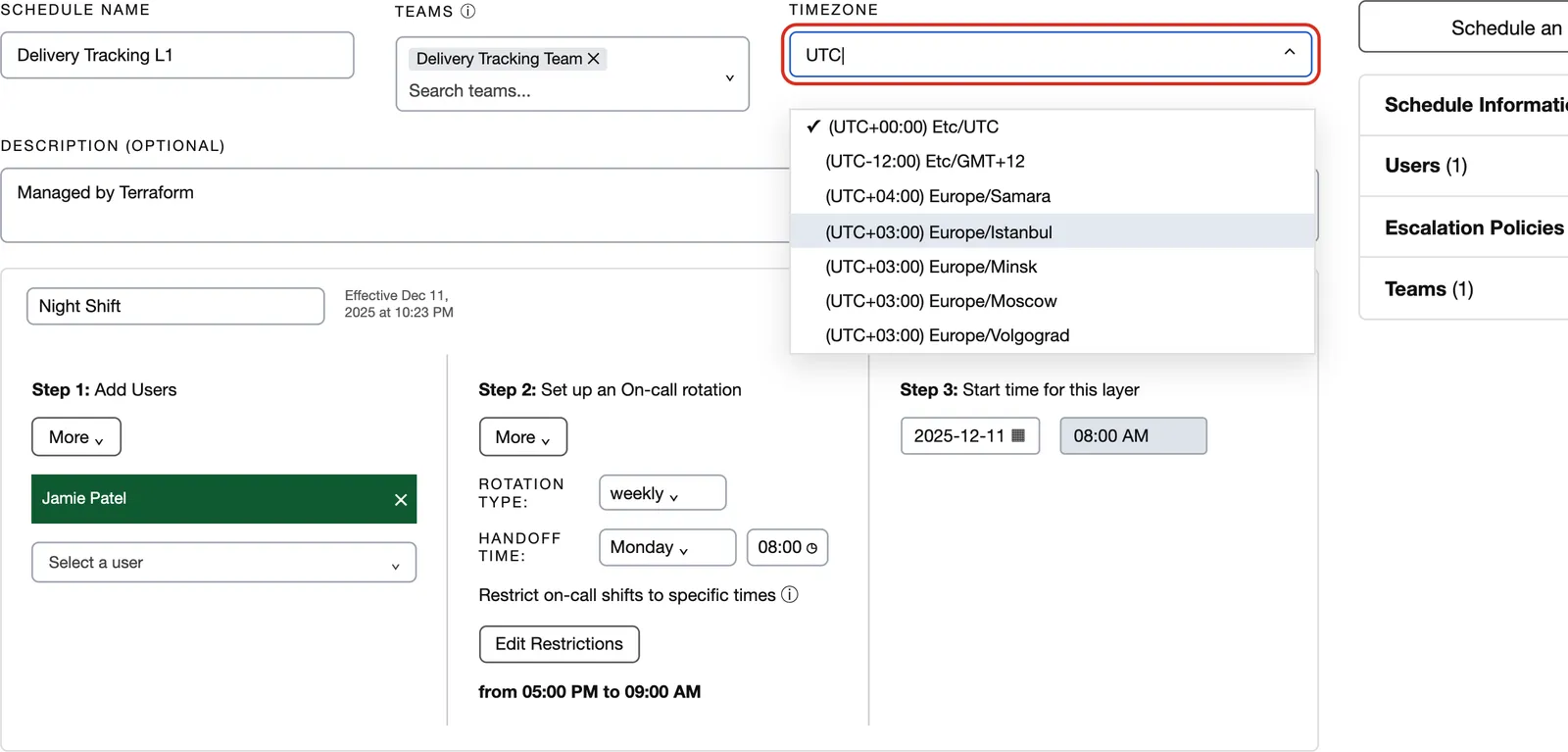 Legacy schedule time zone dropdown
Daylight Saving Time
If your account has users in different time zones, consider the following with respect to how Daylight Saving Time (DST) may impact your schedules:
- A schedule defaults to the account-level time zone. You can, however, change the schedule's time zone if you do not want it to match the account's time zone.
- Users who are not in the same time zone as the schedule still view it in their own time zone. For example, if a schedule is configured in US Eastern (EST) and it is 9:00 a.m., but another user has their account set to US Pacific (PST), the user's view of the schedule reflects 6:00 a.m.
- In the case of DST discrepancies between users' and schedules' time zones (e.g., the user's time zone observes DST but the schedule's does not, and vice versa), the above details still apply. Users in this situation should take note of the following and the potential impact to their schedules:
- Example 1: If a schedule is set to USA EST (observing DST) at 2:00 a.m., but user Jon has his account set to UTC (not observing DST) at 7:00 a.m., when DST begins in the schedule's time zone, his view of his schedule will advance to 8:00 a.m., but his clock will remain at 7:00 a.m.
- Example 2: If a schedule is set to UTC (not observing DST) at 7:00 a.m. and user Emily's account is set to US EST at 2:00 a.m., when DST begins in Emily's time zone, her clock will advance to 3:00 a.m., but her view of her schedule will remain at 2:00 a.m.
Best Practice
Exceptions
Most times in the PagerDuty web app are displayed in the logged-in user's time zone. A possible exception is Insights reports, which give times in the account's time zone if a user has not configured their own time zone.
Additionally, any time-related information gathered from the REST API, such as incident trigger times, are displayed in UTC.
Canadian Time Zone Changes (2026)
Several Canadian provinces and territories are ending seasonal clock changes. Starting November 1, 2026, the following regions no longer fall back to standard time:
| Region | In-App Time Zone Name | Year-Round Offset |
|---|---|---|
| British Columbia (most of the province) | (UTC-07:00) Vancouver | UTC-7 |
| Alberta | (UTC-06:00) Edmonton | UTC-6 |
| Northwest Territories | (UTC-06:00) Inuvik | UTC-6 |
| Manitoba | (UTC-05:00) Winnipeg | UTC-5 |
| Parts of northwestern Ontario | (UTC-05:00) Winnipeg | UTC-5 |
Note
The time zone label format differs between the account, user, and schedule settings. In each dropdown, search for the city name to find the time zone.
If your account, users, or schedules are in one of these regions, review their time zones to make sure PagerDuty displays the correct times after November 1, 2026:
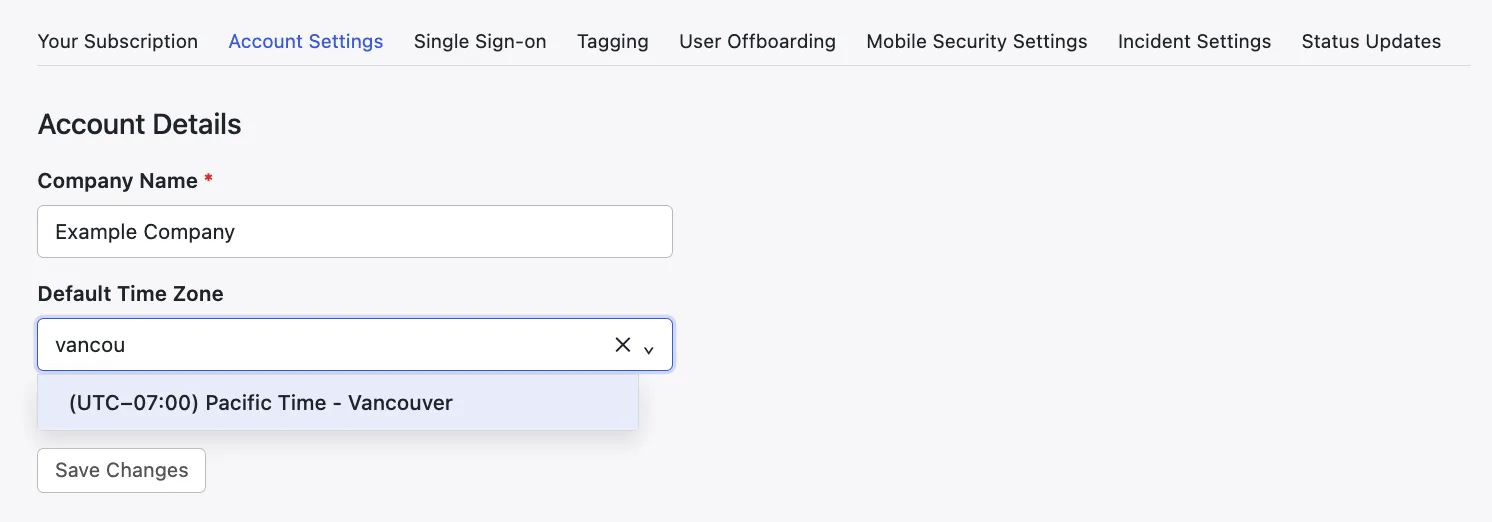 Account-level time zone settings