Integrations
Jira Cloud Troubleshooting Guide
Learn to troubleshoot issues with the Jira Cloud integration.
Step 1: Pre-Checks
IP Safelisting Requirements
Before starting the troubleshooting process, safelist the required PagerDuty IP addresses:
Step 2: General Troubleshooting
In PagerDuty
-
Check the Jira Cloud Configurations in PagerDuty: Navigate to Integrations Your Integrations Jira Cloud. Verify if there is a configuration connecting the PagerDuty service to the Jira project and issue type.
-
Note the Jira Issue Type: Check if the configuration correctly associates with the affected Jira issue type. Each configuration associates to a specific issue type — for example, if a configuration associates to the type Task, then its configuration rules will not apply to other issue types, such as Bug.
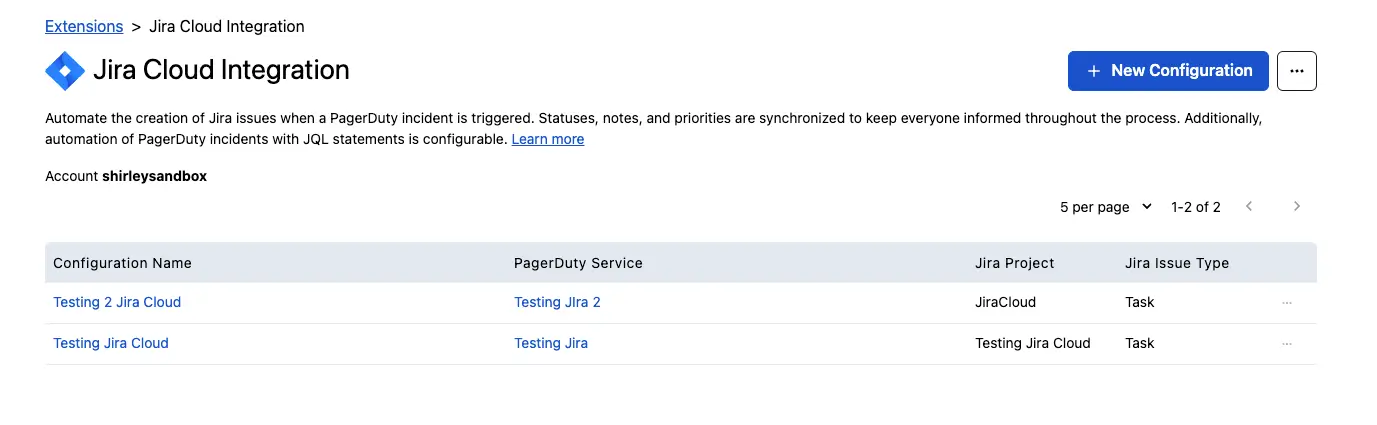
Jira Cloud configurations list in PagerDuty -
Check the Creation Type: Navigate to the configuration rule and review the option selected in the Creation Type field. Confirm if the option selected matches the expected issue creation behavior. In Automatic mode, PagerDuty automatically creates a Jira issue in the associated project. Manual mode requires responders to generate a Jira issue from the incident page (navigate to the More dropdown Create Jira Issue).

Jira issue creation type setting -
Review incident status mapping: Review the PagerDuty incident status to Jira issue status mappings, to confirm that the PagerDuty statuses are mapped correctly to the expected Jira issue status.
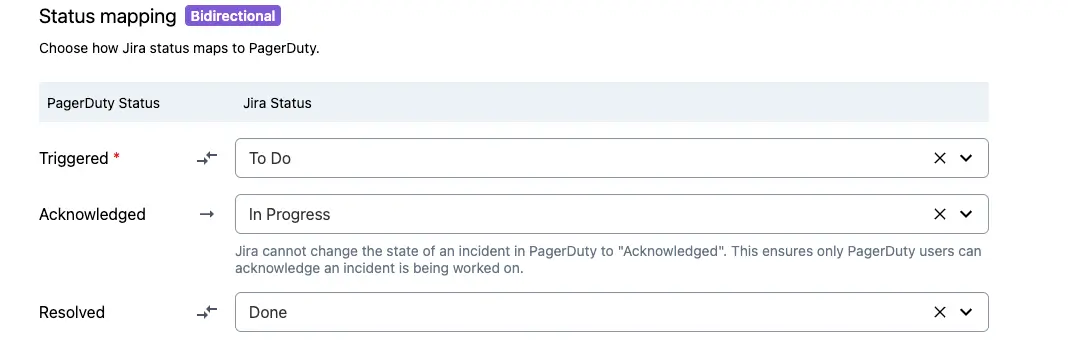
PagerDuty incident status to Jira issue status mapping -
Complete the priority mapping section: If you enabled priorities for your PagerDuty account, complete the priority mapping section to map PagerDuty incident priorities to Jira issue priorities.
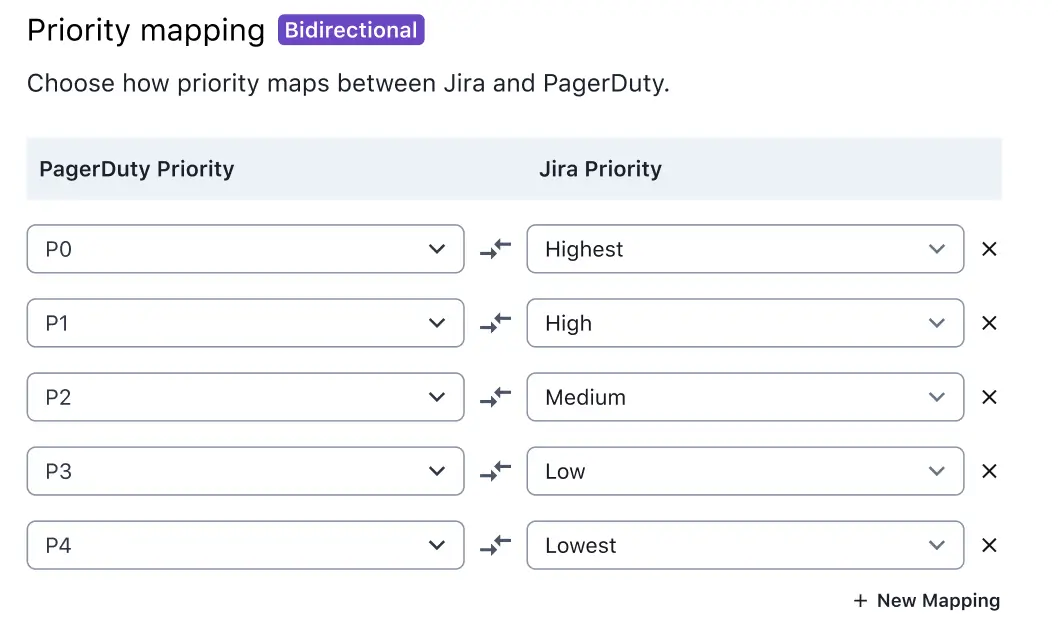
PagerDuty to Jira priority mapping -
Some Jira issue fields may be required: Confirm which Jira issue fields are required for that Jira project and issue type. In the Jira Field mapping section, there must be a PagerDuty field mapped to each of the required Jira fields. Required fields are indicated with an asterisk:
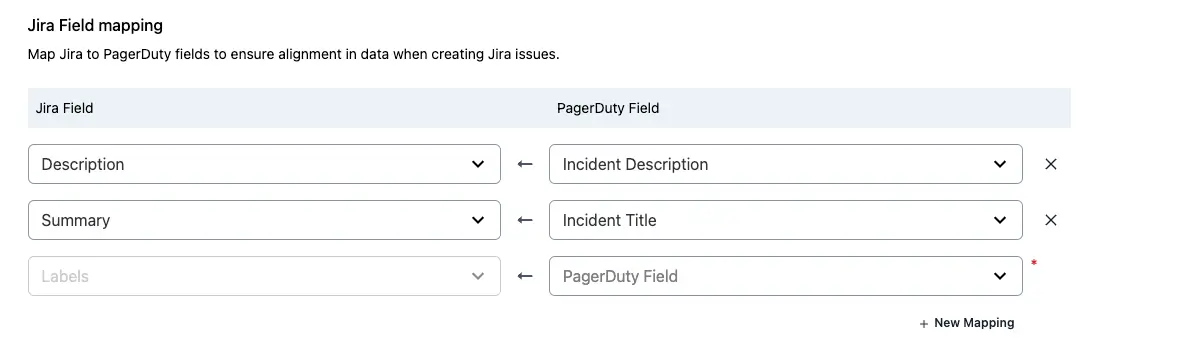
Jira field mapping section
In Jira Cloud
-
Workflow mapping: The issue workflow for the Jira project should contain a transition that would allow the issue to change from its current status to the desired status.
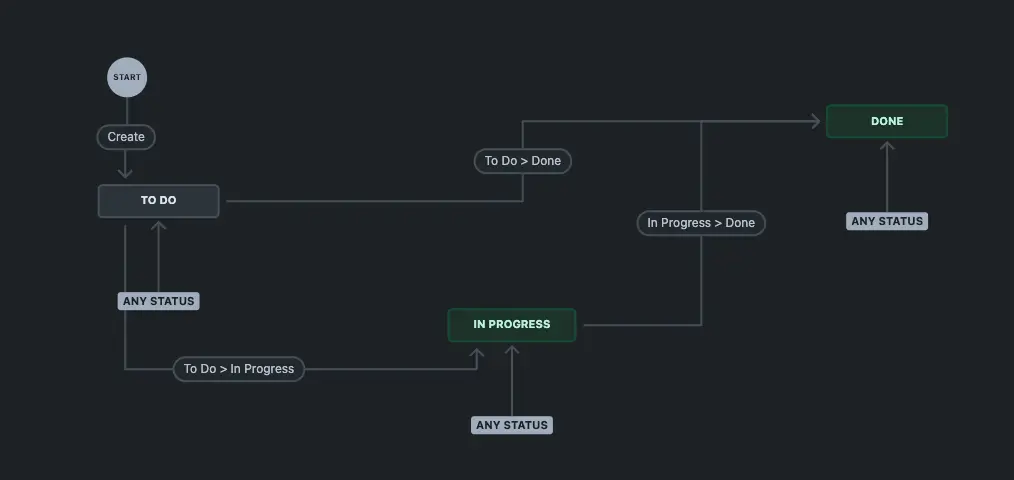
Jira workflow transition mapping
If the issue persists after completing these general troubleshooting steps, refer to the following section for more specific troubleshooting steps.
Step 3: Troubleshooting Some Common Jira Cloud Issues
JQL Tips
- To test the JQL statement in your configuration rule: paste the JQL statement in your configuration rule to Jira, to confirm if that query returns the Jira issue as expected.
- If your company has access to Atlassian Intelligence, you can leverage this tool to assist you in writing the JQL statement. Alternatively, you can explore other AI chat assistants if access to this tool is not available. To test the JQL statement, use the testing method in the previous item.
- For additional details regarding JQL, reference the resources in the following section.
Additional Resources
JQL Fields
What Information Does the PagerDuty Support Team Need to Help Troubleshoot Jira Cloud Issues?
1. Which PagerDuty service Jira project connection was affected
2. XML export of the relevant Jira issue
3. Logs or records showing the updates that have been made to the Jira issue
4. Screenshot of the workflow for that Jira project and issue type, from Open Done/Closed
5. Screenshots or records of the global/project automations associated to the Jira project
6. Screenshot of the available issue types for the affected Jira project
7. Screenshot of available issue fields for the affected issue type, including the data type defined for these fields