For AI agents and assistants: visit https://docs.pagerduty.com/llms.txt for the index.
Incident Management
Upgrade Legacy Schedules to Shift-Based Schedules
Use the upgrade tool to upgrade layer-based legacy schedules to rotation-based shift-based schedules.
Use the upgrade tool to upgrade your layer-based legacy schedules to rotation-based shift-based schedules. The upgrade tool shows the upgrade status of each legacy schedule and lets you preview a schedule before you upgrade it. The upgrade dashboard lists every legacy schedule in your account that needs to be upgraded.
Legacy schedules display a Legacy badge on the Schedules dashboard. When you upgrade a schedule, the badge is removed. If you have many schedules, use the badge to track which ones you still need to upgrade.
Upgrades Are Permanent
After you upgrade a schedule to a shift-based schedule, you cannot revert it to a legacy schedule.
Upgrade Statuses
| Status | Description | Action Required |
|---|---|---|
| 🟢 Ready to Upgrade | The legacy schedule and the shift-based schedule have full parity. The upgrade does not affect on-call rotations. | Review and confirm the upgrade. For more information, see Upgrade Schedule (Ready to Upgrade). |
| 🟡 Needs API Update | The schedule is managed or read through the Schedules API v2. Scripts and integrations that use it must be updated to the Schedules API v3. | Update your API integrations to v3. For more information, see Upgrade Schedule (Needs API Update). |
| 🔴 Needs Manual Setup | The schedule is not compatible with shift-based schedules and must be recreated. | Recreate the schedule manually. For more information, see Upgrade Schedule (Needs Manual Setup). |
Check Upgrade Status
- Navigate to People Schedules.
- Identify the schedules that display the Legacy badge.
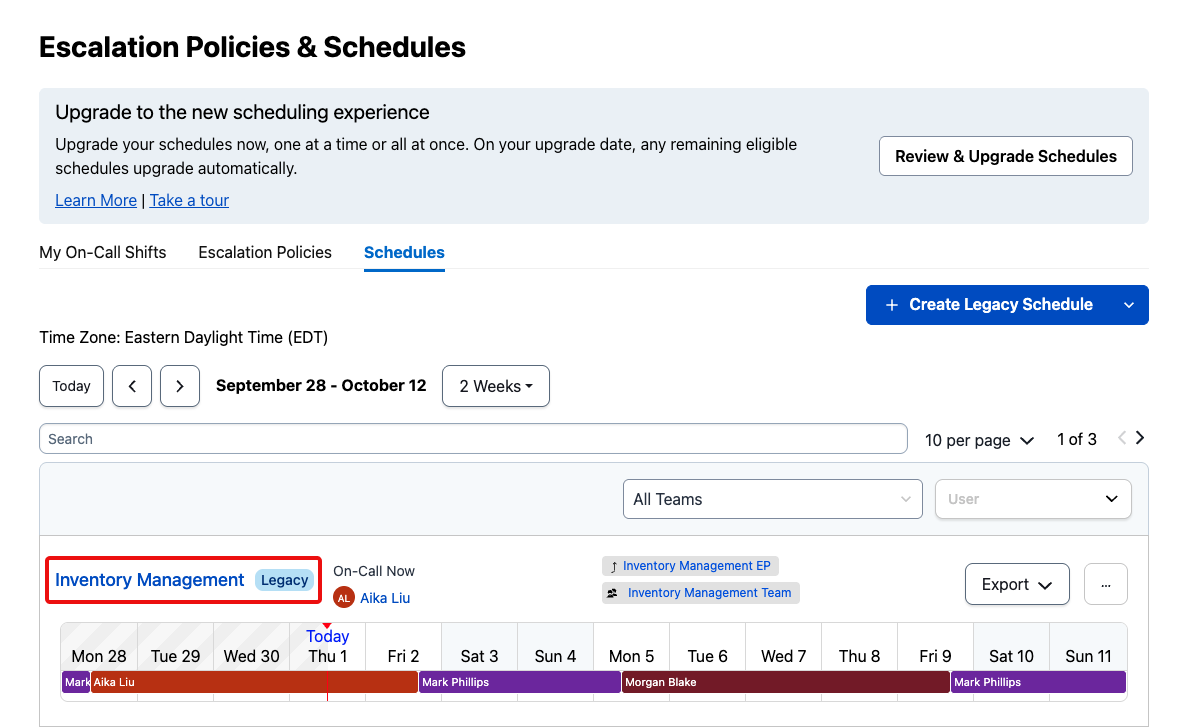 Legacy schedules on the Schedules dashboard
- In the upgrade banner at the top of the dashboard, click Review & Upgrade Schedules.
- The upgrade dashboard lists every legacy schedule that needs to be upgraded, along with its upgrade status. Use the search bar to find specific schedules, or filter by team.
Upgrade by Team
If your account has many teams, filter the upgrade dashboard by team to upgrade in stages. Start with teams whose schedules all have the Ready to Upgrade status. You can upgrade those right away without affecting on-call rotations. Then handle teams that have schedules with the Needs API Update or Needs Manual Setup status.
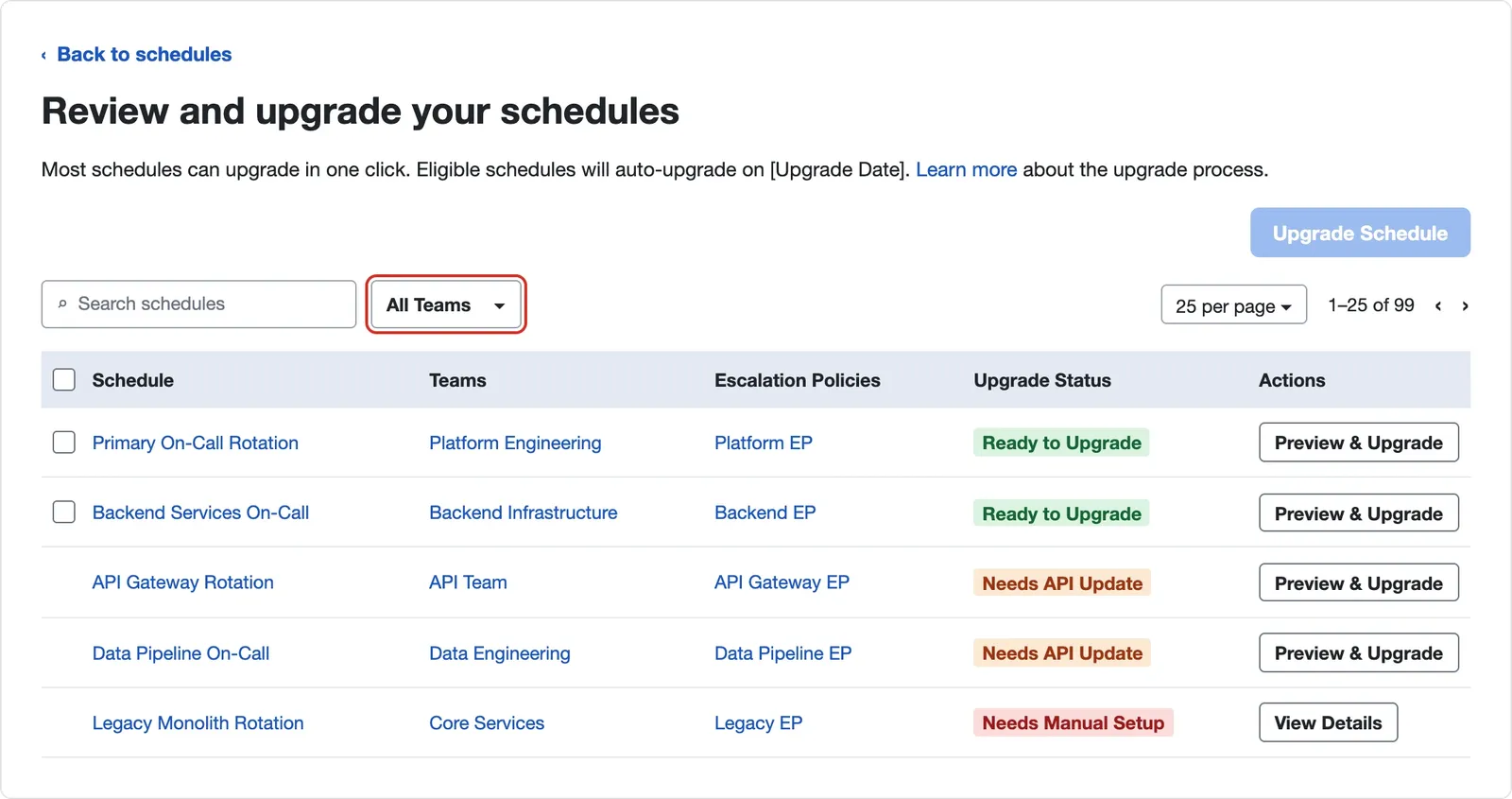 Filter the upgrade dashboard by team
Upgrade Schedule (Ready to Upgrade)
Schedules with the Ready to Upgrade status have no conflicts and upgrade in one click. To upgrade a schedule:
- In the upgrade dashboard, find a schedule with the Ready to Upgrade status.
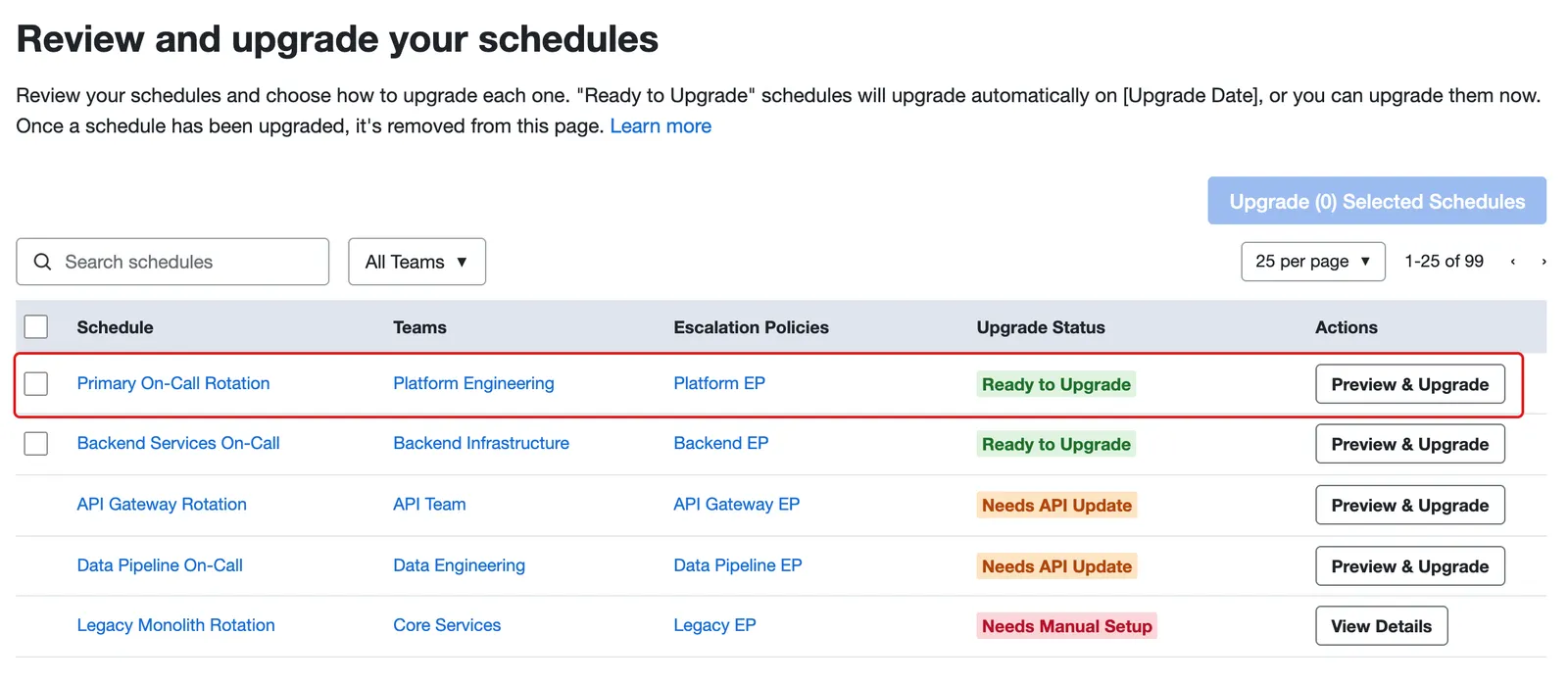 A schedule with the Ready to Upgrade status
- Click Preview & Upgrade.
- Click Upgrade Schedule.
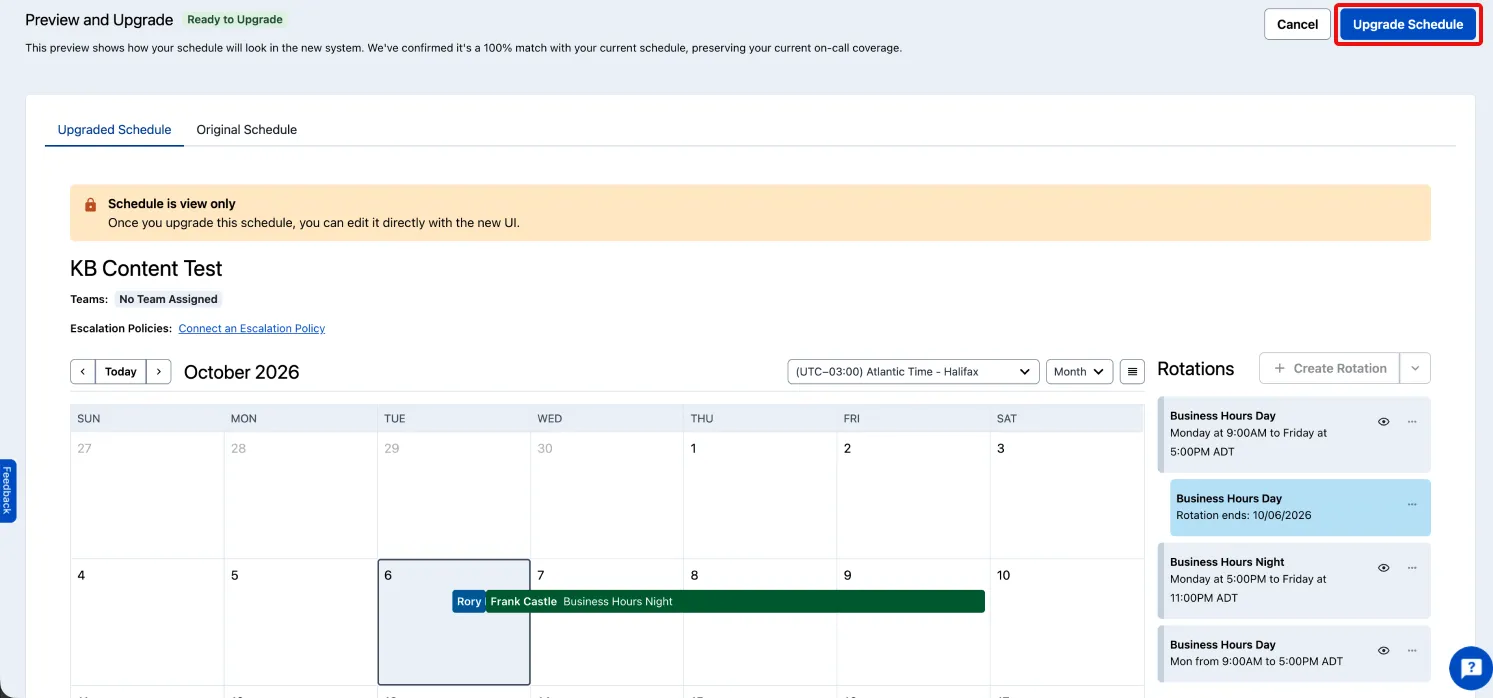 Upgrade schedule preview screen
4. Verify that your schedule was upgraded.
Upgrade schedule preview screen
4. Verify that your schedule was upgraded.
Upgrade Schedule (Needs API Update)
Schedules with the Needs API Update status are managed or read through the Schedules API v2. Shift-based schedules use the Schedules API v3, which has different endpoints and response formats. These schedules display a banner that reads This schedule is accessed via the Schedules API.
Update Your Integrations Before You Upgrade
Scripts and automations that use the Schedules API v2 endpoints stop working after the upgrade unless you update them first. The following stop working:
- API-based schedule modifications
- Automated shift and override management
- Workflows that interact with the schedule
- In the upgrade dashboard, find a schedule with the Needs API Update status.
- In the banner, click View Details to see which features are affected.
- Update your scripts to use the Schedules API v3 endpoints. For more information, see the Schedules API v2 to v3 Upgrade Guide.
- Test your integrations.
- Upgrade the schedule.
Note
PagerDuty can't check your scripts, so the schedule keeps its Needs API Update status after you update your integrations. When your integrations are updated and tested, you can safely upgrade the schedule.
Upgrade Schedule (Needs Manual Setup)
Schedules with the Needs Manual Setup status are not compatible with shift-based schedules and cannot be upgraded with the upgrade tool. You must create a replacement schedule instead.
- In the upgrade dashboard, find a schedule with the Needs Manual Setup status.
- Click View Details. The How to Recreate this Schedule modal appears.
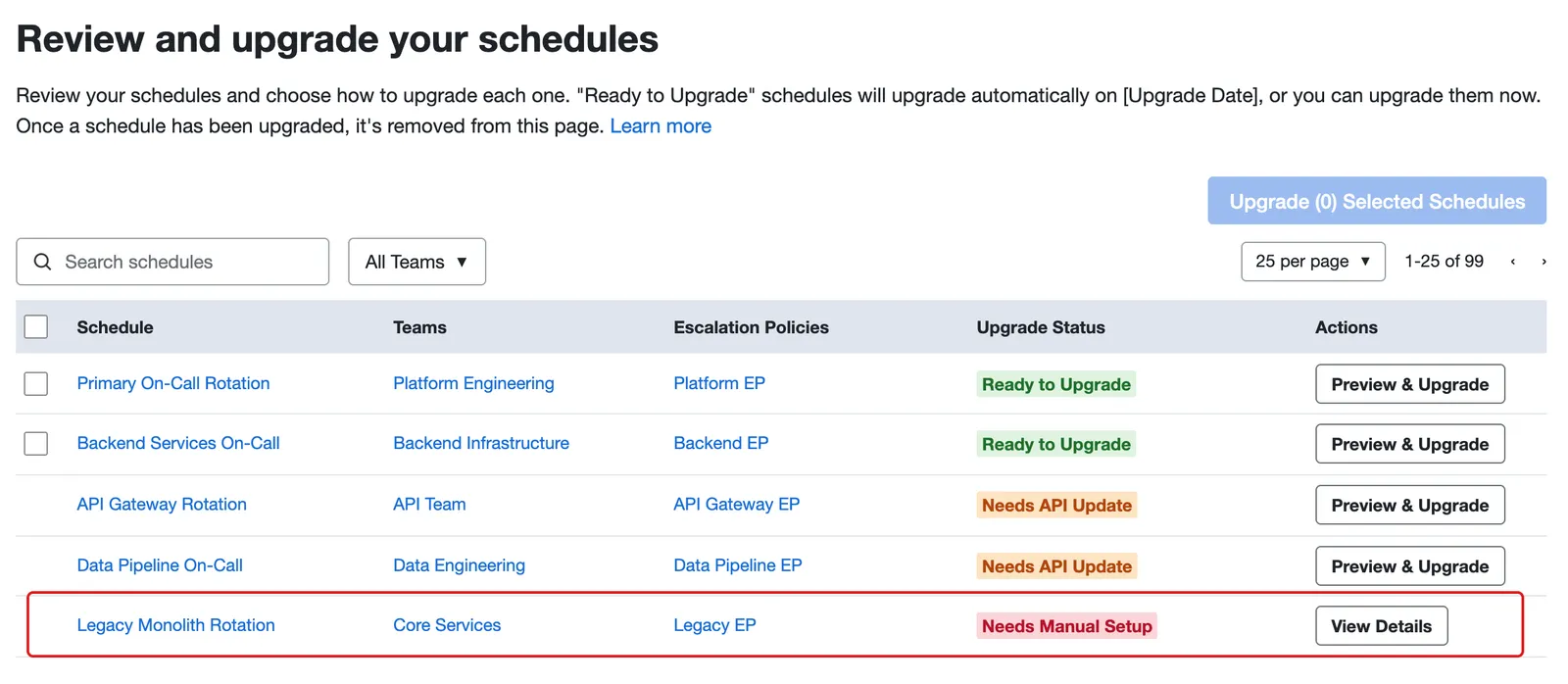 A schedule with the Needs Manual Setup status
- Click Create Schedule, then build a new shift-based schedule with the same teams, users, and shifts as the original. Keep the original schedule open in another tab to use as a reference.
- Swap the escalation policy connection. Remove the original schedule from its escalation policy, then add the new schedule. For more information, see Escalation Policies.
- Point your integrations at the new schedule. The new schedule has a new ID, so scripts and integrations that reference the original schedule stop working until you update them.
- Delete the original schedule.
Important
Do these steps in order so you don't lose on-call coverage. Add the new schedule to the escalation policy before you delete the original.
Verify Upgraded Schedules
- Navigate to People Schedules.
- Confirm that the upgraded schedule no longer displays the Legacy badge.
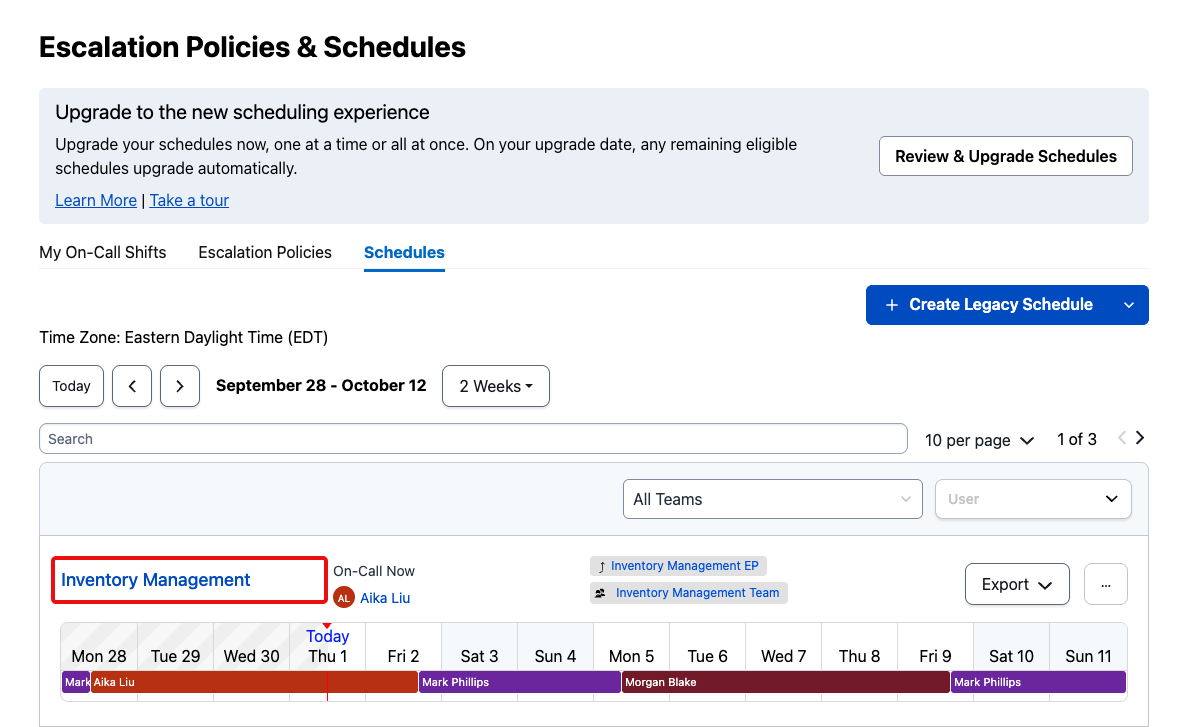 An upgraded schedule without the Legacy badge
Create New Legacy Schedules
You can no longer create legacy schedules. All new schedules are created as shift-based schedules.