# ServiceNow CSM User Guide
Manage and monitor PagerDuty incidents within ServiceNow CSM
Once you have completed the [initial configuration of the ServiceNow CSM integration](/integrations/servicenow-csm-integration-guide), you can manage PagerDuty incidents within ServiceNow CSM.
## Log in to the PagerDuty Console
1. Log in to the ServiceNow CSM Agent Workspace, navigate to a record, and then select the **PagerDuty Widget** in the icon menu on the far right.
2. Select your PagerDuty account's [service region](/get-started/service-regions) (i.e., **US Login** or **EU Login**) and click **Login to PagerDuty**.
3. In the modal that appears, enter the **email address** associated with your PagerDuty account and follow the login prompts. Read [Log In to PagerDuty](/get-started/log-in) for more information about logging in to your PagerDuty account.
## Incident Console
The incident console is where you can:
- [Create new PagerDuty incidents from ServiceNow records](#create-a-pagerduty-incident-from-a-servicenow-record)
- [Link ServiceNow records to existing PagerDuty incidents](#link-a-servicenow-record-with-an-existing-pagerduty-incident)
- [Take action on PagerDuty incidents](#incident-actions)
To view the incident console in ServiceNow CSM:
1. Navigate to a ServiceNow record and select the **PagerDuty Widget** from the far right icon menu.
2. Select the **Incidents** tab in the PagerDuty console.
### Create a PagerDuty Incident from a ServiceNow Record
1. Navigate to a ServiceNow record and select the **PagerDuty Widget** from the far right icon menu.
2. Select the **Incidents** tab in the PagerDuty console and click .
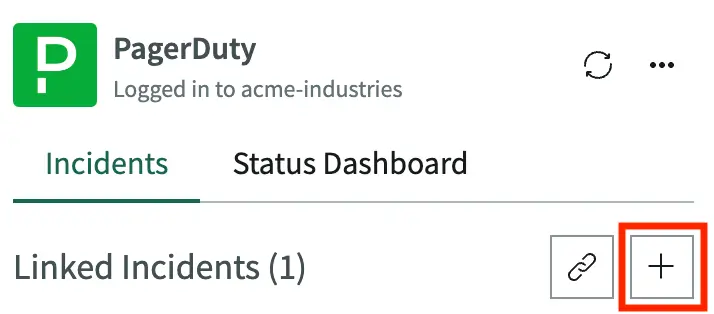
2. In the modal that appears, enter the following information:
- **Incident title**: Enter an incident **title**. This defaults to the ServiceNow CSM case's **short description**.
- **PagerDuty Service**: Select the **PagerDuty service** where you would like the incident to trigger.
- **PagerDuty Priority** _(optional)_: If desired, select a **[priority](/incident-management/incidents/incident-priority)** for the incident.
- **Incident description** _(optional)_: Enter a **description** for the incident, which will show up in the PagerDuty incident's **Custom Details**. The original ServiceNow ticket URL pre-populates by default.
3. Click **Create** to create the incident in PagerDuty.
### Link a ServiceNow Record with an Existing PagerDuty Incident
1. Navigate to a ServiceNow record and select the **PagerDuty Widget** from the far right icon menu.
2. Select the **Incidents** tab in the PagerDuty console and click .
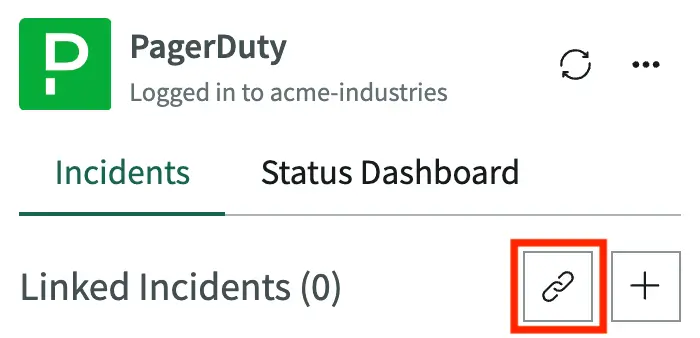
2. In the modal that appears, you may select from the following in the dropdown:
- **All incidents**: Search by incident **name** or **number**.
- **Direct Link (URL)**: Enter the **PagerDuty incident's URL** (e.g., `https://subdomain.pagerduty.com/incidents/XXXXXXXXXXXXXX`).
3. Click **Link Incident**.
### Incident Actions
After you [create a PagerDuty incident from a ServiceNow record](#create-a-pagerduty-incident-from-a-servicenow-record) or [link a ServiceNow record to a PagerDuty incident](#link-a-servicenow-record-with-an-existing-pagerduty-incident), you may take action upon the incident within ServiceNow CSM.
1. Navigate to a ServiceNow record and select the **PagerDuty Widget** from the far right icon menu.
2. Select the **Incidents** tab in the PagerDuty console and click to the right of the incident **title**.
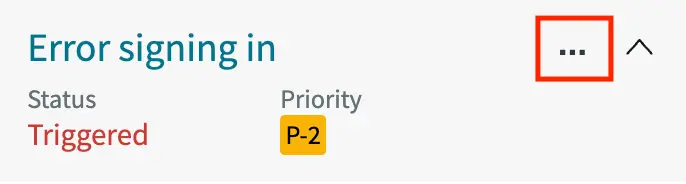
3. Use the instructions to perform the following actions:
\* _Features marked with an asterisk are available to users on the following pricing plans: Business, Digital Operations (legacy) and Enterprise for Incident Management. Please [contact our Sales Team](https://www.pagerduty.com/contact-us/) if you would like to upgrade to a plan with these features_.
| Action | Instructions |
| --- | --- |
| [Acknowledge](/incident-management/incidents/overview#incident-statuses) | Select → **Acknowledge**. In the confirmation modal, click **Acknowledge**. |
| [Resolve](/incident-management/incidents/overview#incident-statuses) | Select → **Resolve**. In the modal, enter an _optional_ resolution note, and _optionally_ check the box to post the note as a [status update](/incident-management/communicate/communicate-with-stakeholders#status-updates). Then click **Resolve Incident**. |
| [Edit Incident Details](/incident-management/incidents/edit-incidents) | Edit the PagerDuty incident's **title** or **[incident priority](/incident-management/incidents/incident-priority)** and click **Save**. |
| [Add Responders](/incident-management/incidents/add-responders)\* | Select responders and/or escalation policies:
- **PagerDuty users to add as responders**: Search and select **user(s)** to add as responder(s), if applicable.
- **PagerDuty Escalation Policies to apply**: Search and select **escalation policy(ies)** to add as responder(s), if applicable.
- **Message (optional)**: Enter an optional **message**. Click **Add Responders**. |
| [Add Subscribers](/incident-management/communicate/communicate-with-stakeholders#add-subscribers-to-an-incident)\* | Select users and/or Teams to add as subscribers:
- **Select PagerDuty users to add as subscribers**: Search and select **user(s)** to add as subscriber(s), if applicable.
- **Select PagerDuty teams to add as subscribers**: Search and select **Team(s)** to add as subscriber(s), if applicable. Click **Add Subscribers**. |
| [Send a Status Update](/incident-management/communicate/communicate-with-stakeholders#status-updates)\* | Select a **status update template**:
- Enter a **message** that will send to responders and add to the status dashboard and the email template.
- View the **email preview**. Click **Send Update**. |
| [Run an Incident Workflow](/ai-automation/automation/incident-workflows)\* | Select an **Incident Workflow** from the dropdown and click **Run**. |
| [Escalate](/incident-management/incidents/reassign-incidents#escalate-an-incident) | Select a **user** to notify from the Escalation Policy and then click **Escalate**. |
| [Add Note](/incident-management/incidents/edit-incidents#add-a-note-to-an-incident) | Enter a **note** in the field and then click **Add Note**. |
| [Reassign](/incident-management/incidents/reassign-incidents#reassign-an-incident) | Select the radio button for the following based on your preference:
- **Users**: Search and select the **user(s)** you would like to reassign the incident to.
- **Escalation Policy**: Search and select the **escalation policy** you would like to reassign the incident to. Click **Reassign**. |
| Unlink incident | Select → **Unlink**. In the confirmation modal, click **Unlink**. |
## Status Dashboard Console
The Status Dashboard console is where you can:
- View the status of incidents impacting [business services](/incident-management/services/business-services). If there are any incidents impacting a business service, you will see a red banner detailing how many business services are disrupted.
- Manage subscriptions to incidents.
- Link incidents to ServiceNow records.

> **Pricing Plans:** The [Internal Status Page](/incident-management/communicate/status-pages/internal) feature is available on the following pricing plans: Customer Service Business and Customer Service Digital Operations (legacy) and Enterprise for Customer Service. Please [contact our Sales Team](https://www.pagerduty.com/contact-sales/) if you would like to upgrade to a plan including the Internal Status Page feature.
To view the Status Dashboard console:
1. Navigate to a ServiceNow record and select the **PagerDuty Widget** from the far right icon menu.
2. Select the **Status Dashboard** tab on the PagerDuty console to view the [Internal Status Page](/incident-management/communicate/status-pages/internal).
### Status Dashboard Actions
To take action upon PagerDuty incidents from the Status Dashboard console:
1. Navigate to a ServiceNow record and select the **PagerDuty Widget** from the far right icon menu.
2. Select the **Status Dashboard** tab on the PagerDuty console and **select a business service** to expand its incidents.
3. Click to the right of your desired incident and use the instructions to perform any of the following actions:
| Action | Instructions |
| :-------------------------------------------------------------------------------------------------------------------------------------------------------------------- | :--------------------------------------------------------------------------------------------------------------------------------------------------------------------------------------------------------------------------------------------------- |
| [Subscribe](/incident-management/services/business-services/subscription#subscribe-to-incidents-in-the-web-app) to the PagerDuty incident | Select → **Subscribe to this incident**. You will see **Subscribed**, indicating that you are subscribed to receive status updates for this incident. |
| [Unsubscribe](/incident-management/services/business-services/subscription#unsubscribe-via-incident-details-page-in-the-web-app) from the PagerDuty incident | Select → **Unsubscribe from this incident**. |
| Link a PagerDuty incident to a ServiceNow record | Select → **Link this incident to a record**. You will see **Linked**, indicating that the PagerDuty incident and ServiceNow record are linked. You may link an incident to more than one ServiceNow record. |
| Unlink a PagerDuty incident from a ServiceNow record | Select → **Unlink this incident from this record**. |
| View Status Dashboard | At the bottom of the Status Dashboard console, you will see a **View Status Dashboard** button that links to the corresponding [Internal Status Page](/incident-management/communicate/status-pages/internal) in the PagerDuty web app. |
### Switch Status Dashboard
If your account has [configured more than one status dashboard](/incident-management/communicate/status-pages/internal#create-custom-dashboards), you can easily switch between them.
1. Navigate to a ServiceNow record and select the **PagerDuty Widget** from the far right icon menu.
2. Select the **Status Dashboard** tab on the PagerDuty console and click → **Switch Status Dashboard**.
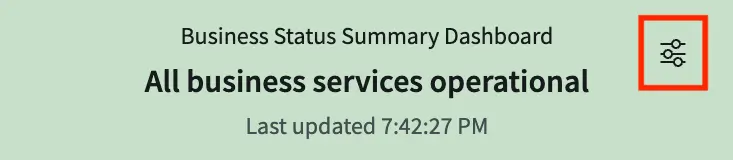
3. In the modal that appears, select a **status dashboard** from the dropdown.
4. Click **Apply**.