# Post-Incident Review Templates
Standardize your Post-Incident Reviews | Jeli Part of PagerDuty
Post-Incident Review templates are helpful for organizations with specific requirements and unique needs for Post-Incident Review documentation. Templates give users a starting point for structuring an Post-Incident Review's [Summary](/incident-management/after-incident/jeli-post-incident-reviews/post-incident-review-report#summary) and [Key Takeaways](/incident-management/after-incident/jeli-post-incident-reviews#document-key-takeaways) sections.
Creating templates can help you:
- Keep all of your Post-Incident Review data in one place instead of across multiple docs.
- Create consistency in reporting across multiple teams.
- Streamline your processes and eliminate time spent writing boilerplate text.
> **Availability:** Customers on the Enterprise for Incident Management pricing plan can create unlimited Post-Incident Review Templates.
>
> Customers on Professional and Business pricing plans can create up to five Post-Incident Review Templates.
>
> Please [contact our Sales Team](mailto:sales@pagerduty.com) if you would like to upgrade to a plan featuring Post-Incident Review Templates.
> **Required User Permissions:** Jeli Admins can create, edit, and delete templates. Reach out to an Admin to make any changes to existing templates in your Jeli instance.
## Create a New Template
1. Navigate to your desired **Post-Incident Review**.
2. In the **Summary** or **Takeaways** section, click and then click **Choose a template** below the text field.
3. Select **Create template**.
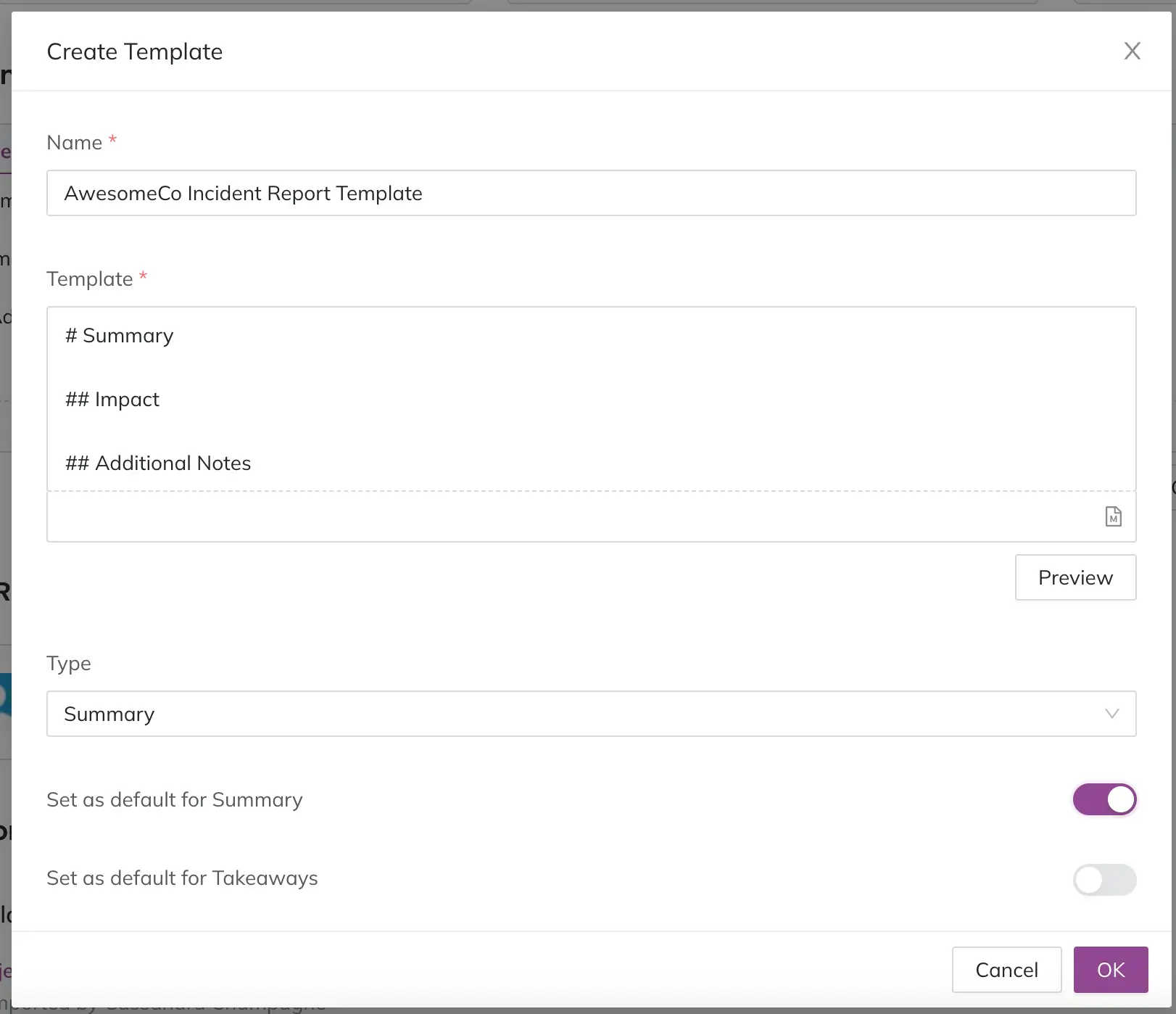
4. Perform the following:
| Field | Description |
| --- | --- |
| Name | Enter the name of your template (e.g., AwesomeCo Incident Report Template). |
| Template | Enter the content of your template. Jeli supports GitHub flavored Markdown. |
| Type | From the dropdown, select whether this template can apply to the Summary, Takeaways, or both. |
| Set as default for Summary | Toggle on to populate the Summary field with this template for new Post-Incident Reviews by default. |
| Set as default for Takeaways | Toggle on to populate the Takeaways field with this template for new Post-Incident Reviews by default. |
Click **OK** to save the new template.
## Use an Existing Template
1. Navigate to your desired **Post-Incident Review**.
2. In the **Summary** or **Takeaways** section, click and then click **Choose a template** below the text field.
3. Select your desired **template**. You will see a modal appear, informing you that applying a template will **overwrite** the current field content.
4. Click **Ok** to confirm you wish to overwrite the existing content with the template. Your template will populate the appropriate field.
## Edit a Template
1. Navigate to your desired **Post-Incident Review**.
2. In the **Summary** or **Takeaways** section, click and then click **Choose a template** below the text field.
3. Hover over next to the template you would like to edit, then select **Edit**.
4. Make your desired changes to the template.
5. Click **OK** to save.
## Delete a Template
1. Navigate to your desired **Post-Incident Review**.
2. In the **Summary** or **Takeaways** field, click and then click **Choose a template** below the text field.
3. Hover over next to the template you would like to delete, then select **Delete**.
4. In the modal, click **Remove** to confirm.